MQTTX 1.13.0 Released: Payload Inspector & UI Improvements

MQTTX 1.13.0 is now officially released.
This version introduces the new Payload Inspector feature, including Diff View and JSON Tree View, making message debugging more intuitive and efficient. It also adds quick copy functionality for one-click copying of Topics, Payloads, and connection addresses. Additionally, new features include Protobuf Editions 2023 support, Windows portable version, and topic whitespace detection. The Desktop and Web UI has been optimized, and the Electron 39 upgrade resolves performance issues on macOS 26 Tahoe.
Download the latest version: mqttx.app/downloads
Payload Inspector
Special thanks to @muzaffarmhd for contributing to this feature
MQTTX 1.13.0 introduces the new Payload Inspector. During MQTT development and testing, you often need to analyze changes in device-reported data, compare message content at different times, or quickly locate fields in complex JSON. To address this, we provide two visualization modes, Diff View and JSON Tree View, significantly improving message analysis efficiency.
Diff View
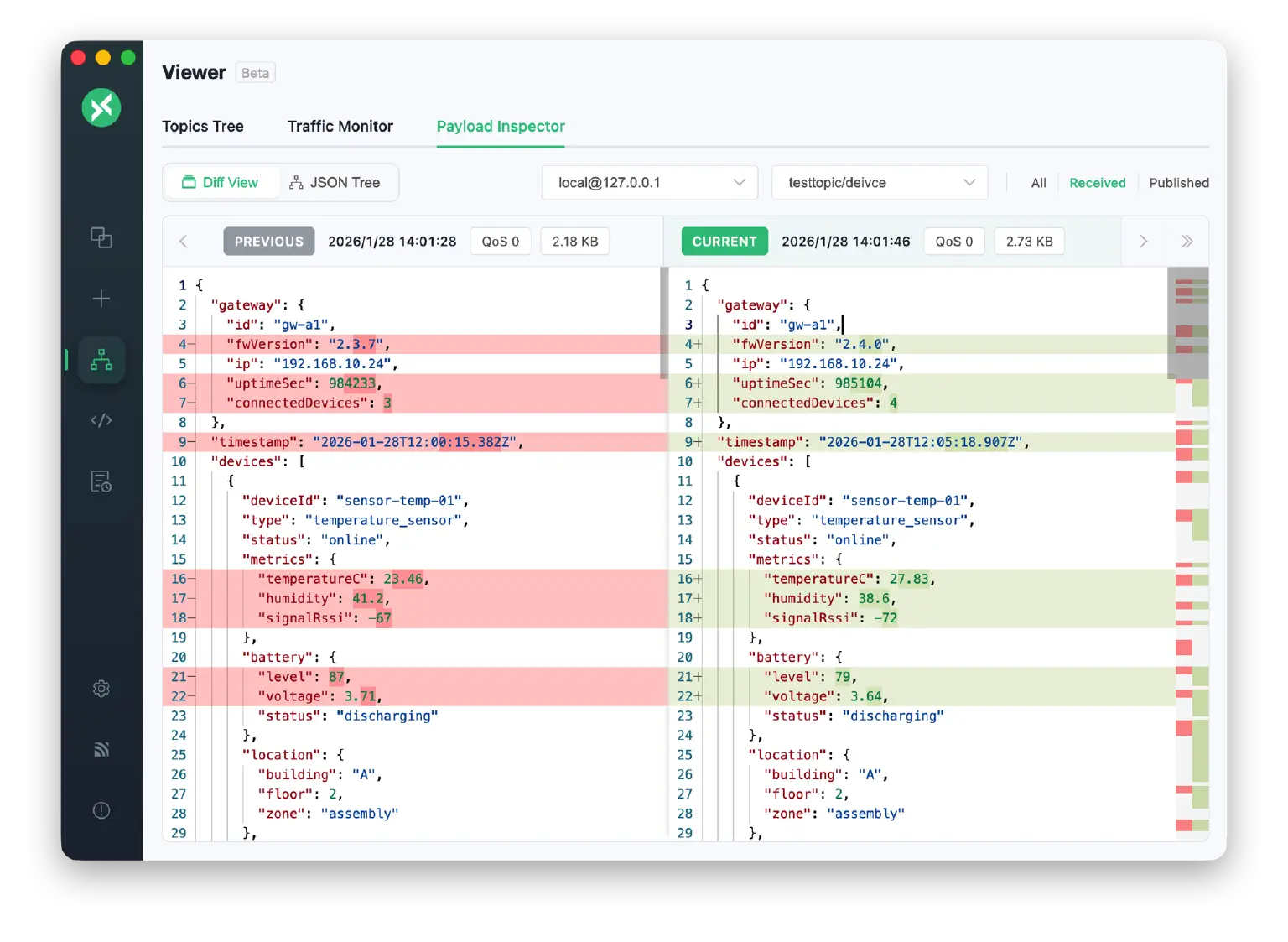
Diff View allows users to intuitively compare Payload differences between two messages, with changes clearly highlighted.
Typical Use Cases:
- Device State Tracking: Compare device status data between two reports to quickly identify which fields have changed
- Data Transmission Verification: Verify whether sent and received messages are consistent
- Troubleshooting: Compare message content between normal and abnormal device behavior
How to Use:
- Go to the Viewer page, switch to the Payload Inspector tab and enable Diff View mode
- Select a connection and topic from the toolbar to load messages, optionally filtering by type (All/Received/Published)
- Navigate between messages using arrow buttons or keyboard shortcuts (
←older,→newer), with automatic loading when reaching the oldest entry - Each message displays metadata including timestamp, QoS, Retain flag, and Payload size
JSON Tree View
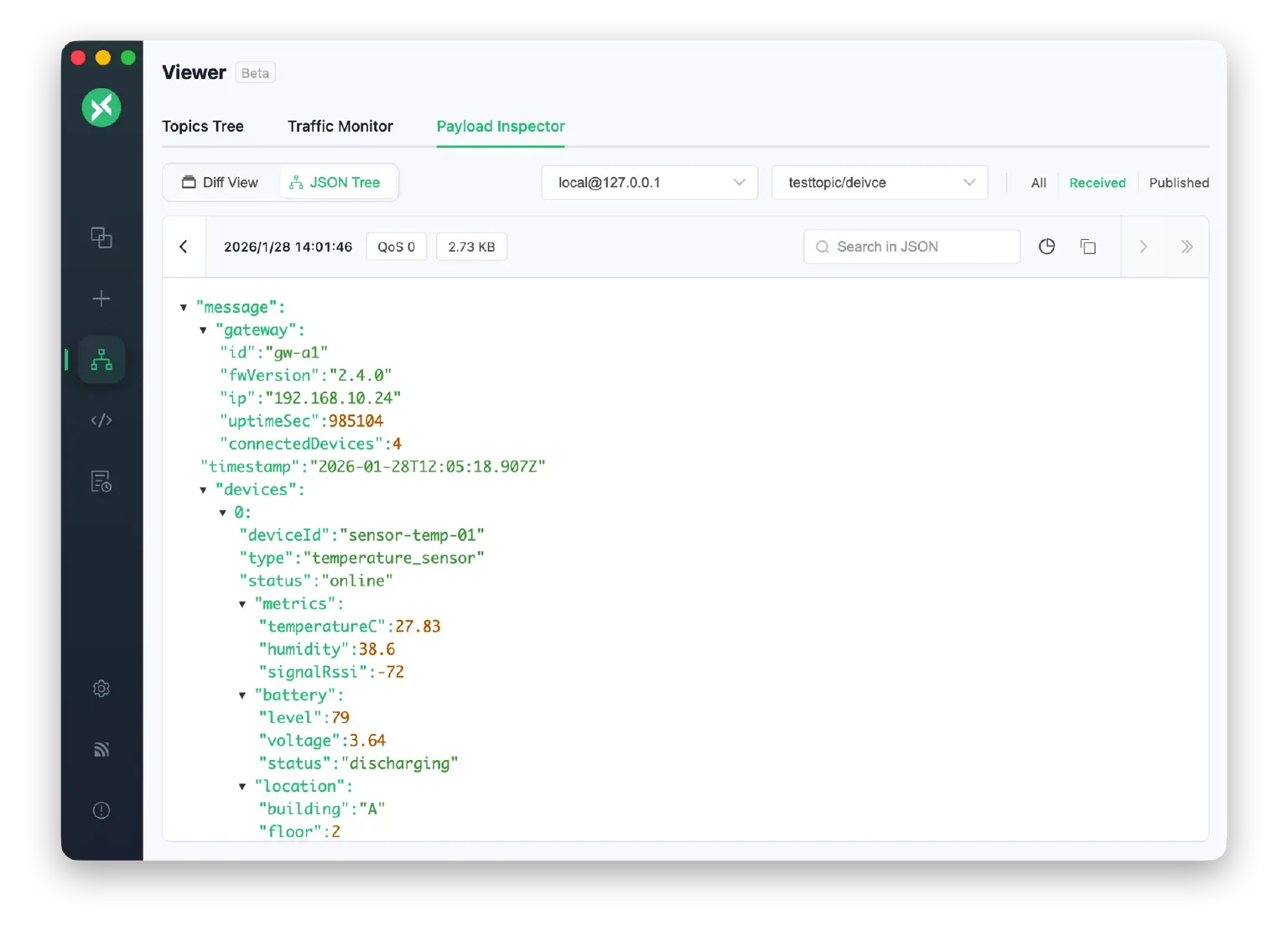
For JSON-formatted Payloads, JSON Tree View provides structured display and navigation capabilities.
Typical Use Cases:
- Complex Data Analysis: Navigate deeply nested JSON structures like sensor data packets or device configurations
- Field Lookup: Quickly search and locate specific fields in large JSON payloads
- Data Visualization: View JSON structure hierarchy with full-screen visualization support
How to Use:
- In Payload Inspector, switch to JSON Tree view mode and select a connection and topic
- Navigate messages using arrow buttons (
←/→), use the search box to find and highlight JSON content - Click the copy icon to copy Payload, or the pie chart icon for full-screen JSON structure visualization
Configurable Max Payload Display Size
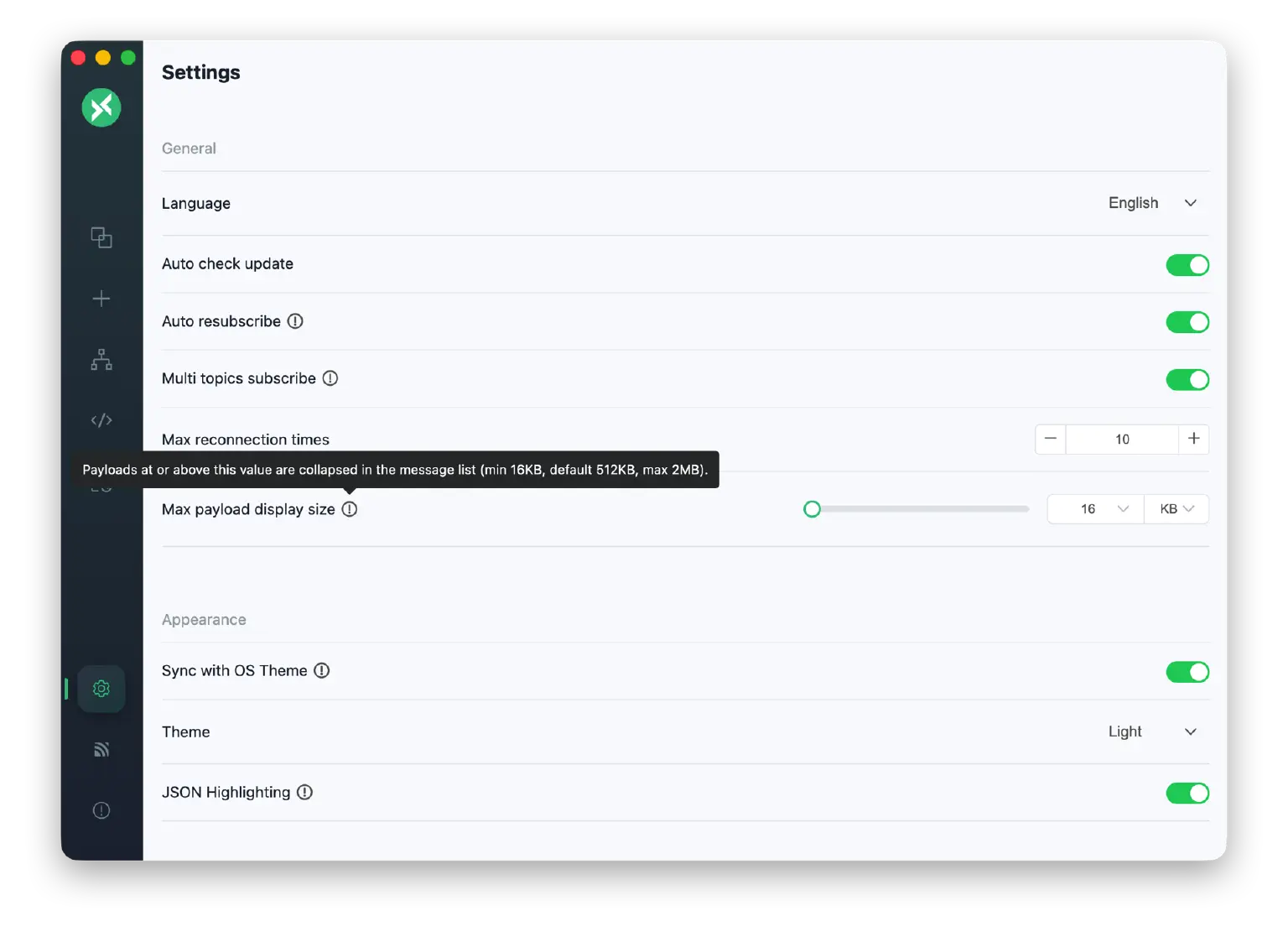
Added max Payload display size setting to automatically collapse large Payloads in the message list.
How to Set:
- Go to Settings > General
- Find the Max Payload Display Size option
- Adjust the threshold using the slider (minimum 16KB, default 512KB, maximum 2MB)
When a message Payload reaches or exceeds the set threshold, that message will be automatically collapsed in the message list, preventing large Payloads from taking up too much screen space. The complete data is still saved and can be expanded at any time.
Quick Copy Feature
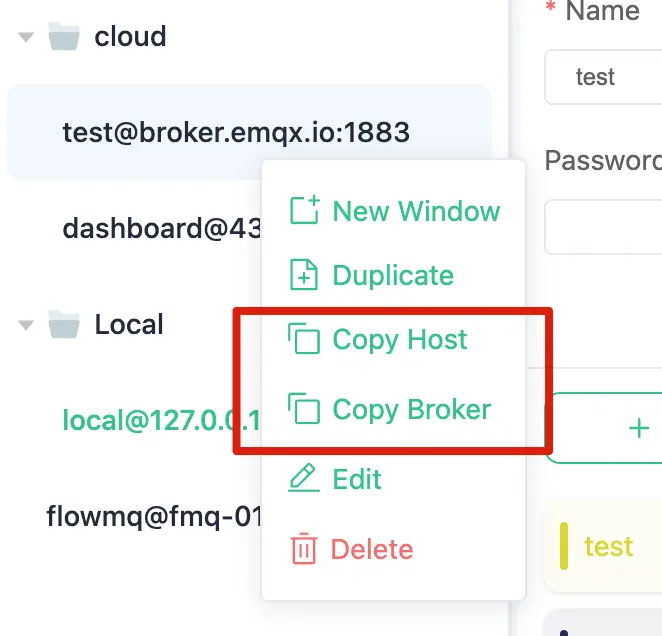
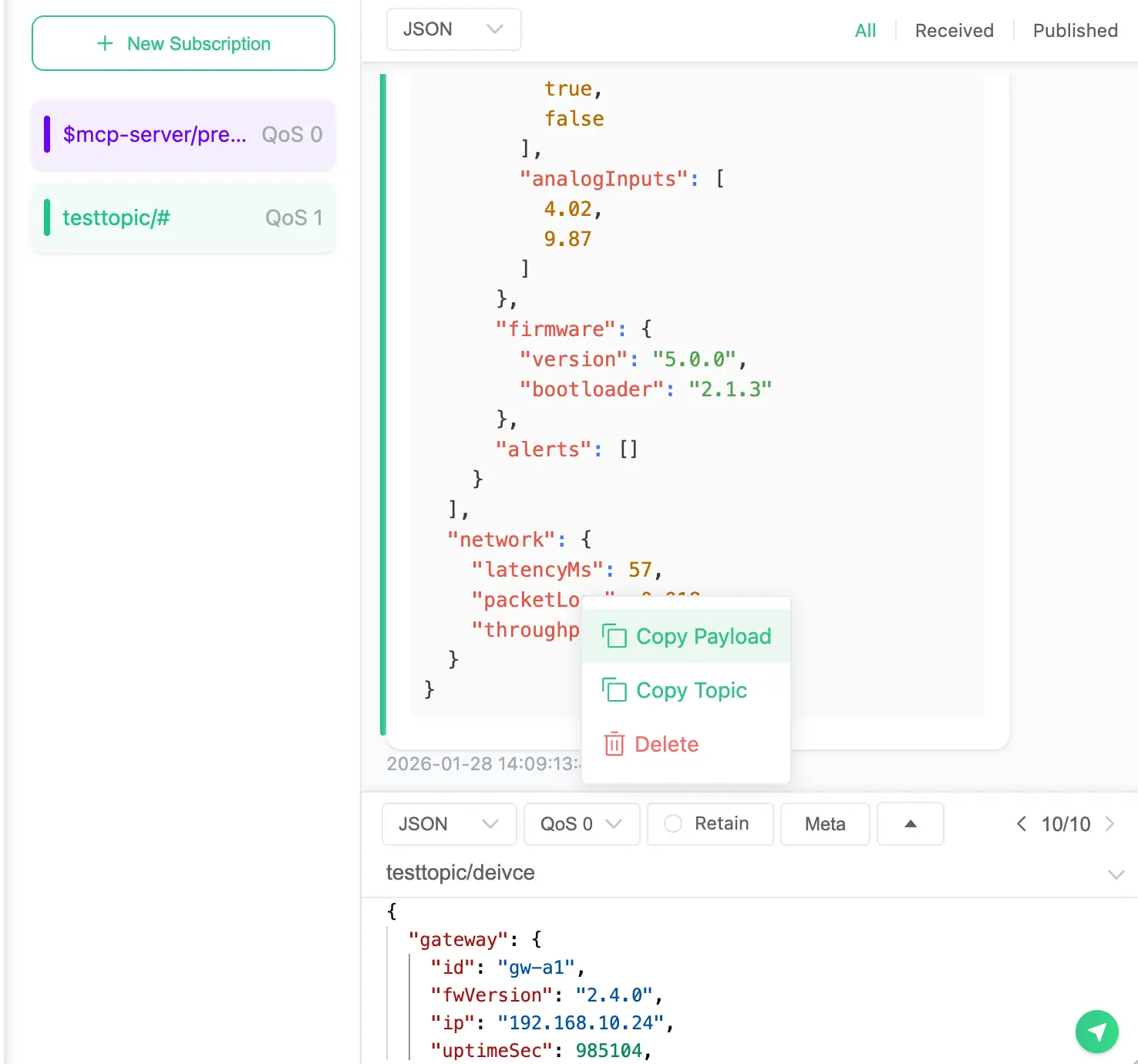
Previously, right-clicking a message could only copy the Payload. This version adds separate Copy Topic and Copy Host/Broker options (#1962). This is particularly useful for scenarios with dynamic topics, making it easy to quickly copy topics for subscription configuration or integration with automation tools like Home Assistant and Node-RED.
Connection Info Copy:
Right-click a connection in the left connection list to quickly copy:
- Copy Host: Copy the host address, e.g.,
broker.emqx.io - Copy Broker: Copy the full connection address, e.g.,
mqtt://broker.emqx.io:1883
Topic / Payload Copy:
Right-click a target message in the message list to quickly copy:
- Copy Topic: Copy the message's Topic
- Copy Payload: Copy the message's complete Payload
Protobuf Editions 2023 Support
MQTTX 1.13.0 upgrades the protobufjs dependency and now supports Protobuf Editions 2023 format. This feature is available in Desktop, CLI, and Web versions.
What is Protobuf Editions?
Protobuf Editions is the next-generation Protocol Buffers syntax introduced by Google in 2023, replacing the previous proto2 and proto3. It introduces a more flexible feature system, allowing developers fine-grained control over field behavior.
Editions Syntax Example:
edition = "2023";

message SensorData {
  int32 device_id = 1;
  float temperature = 2;
  float humidity = 3;
  int64 timestamp = 4;
}
How to Use:
- Go to Settings > Schema
- Click New Schema
- Select Protobuf type
- Paste or upload your
.protofile (supports edition = "2023" syntax) - Select this Schema in your connection for encoding/decoding
If your project has upgraded to Protobuf Editions 2023, MQTTX can now correctly parse and encode these messages.
Topic Whitespace Detection
Added topic whitespace detection to help identify whitespace characters in topics that may cause publish/subscribe mismatches.
Whitespace in MQTT topics is legal but usually indicates user input errors. For example, sensor/temperature and sensor/temperature are two different topics—this difference is hard to spot visually but can cause messages to fail routing correctly.
When enabled, if a topic contains whitespace characters, MQTTX will display a hint in the subscription dialog, using the ␣ symbol to mark whitespace positions, helping you quickly locate issues.
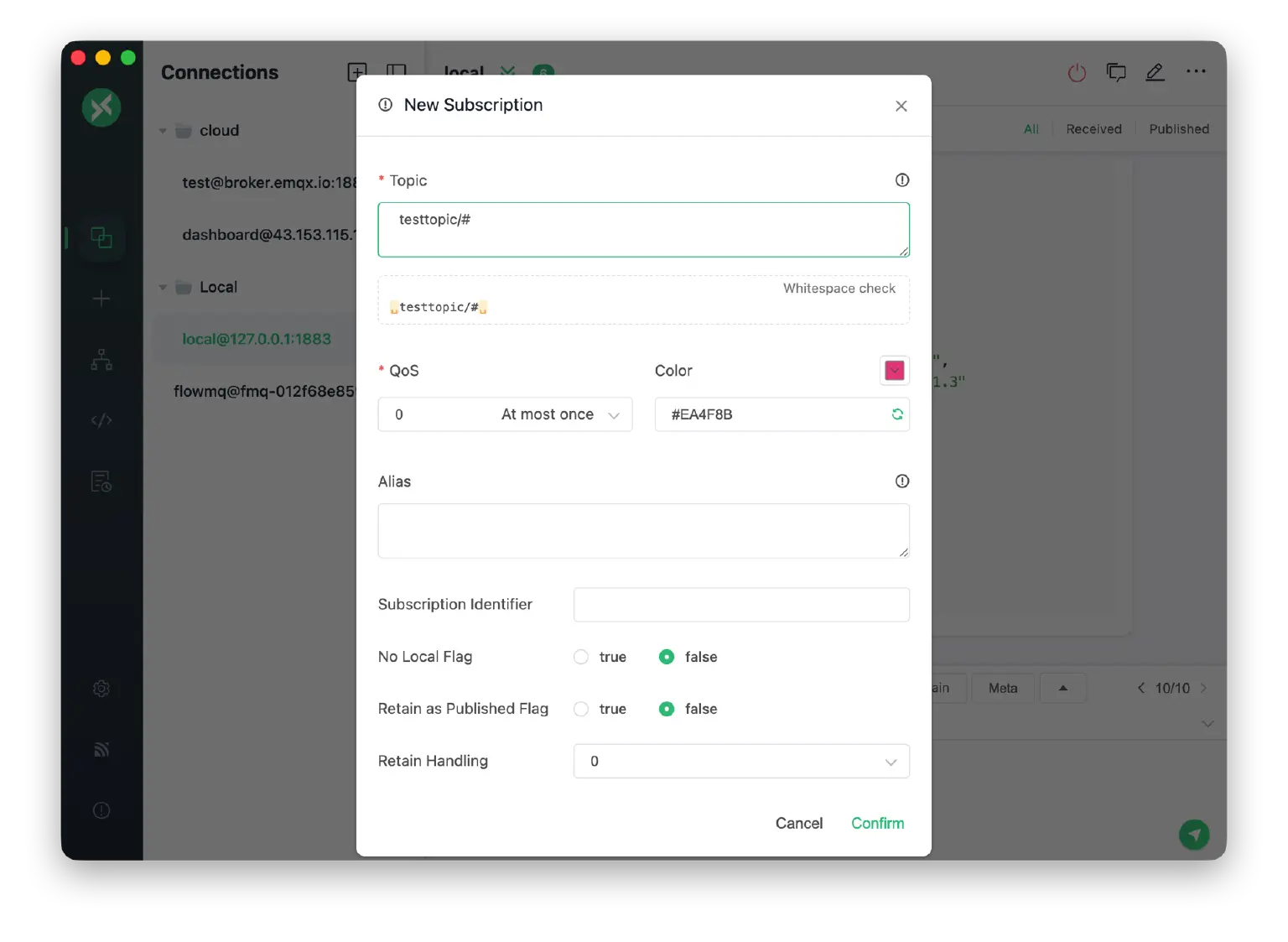
Go to Settings > Advanced and find the Topic whitespace detection toggle to enable it.
UI Improvements
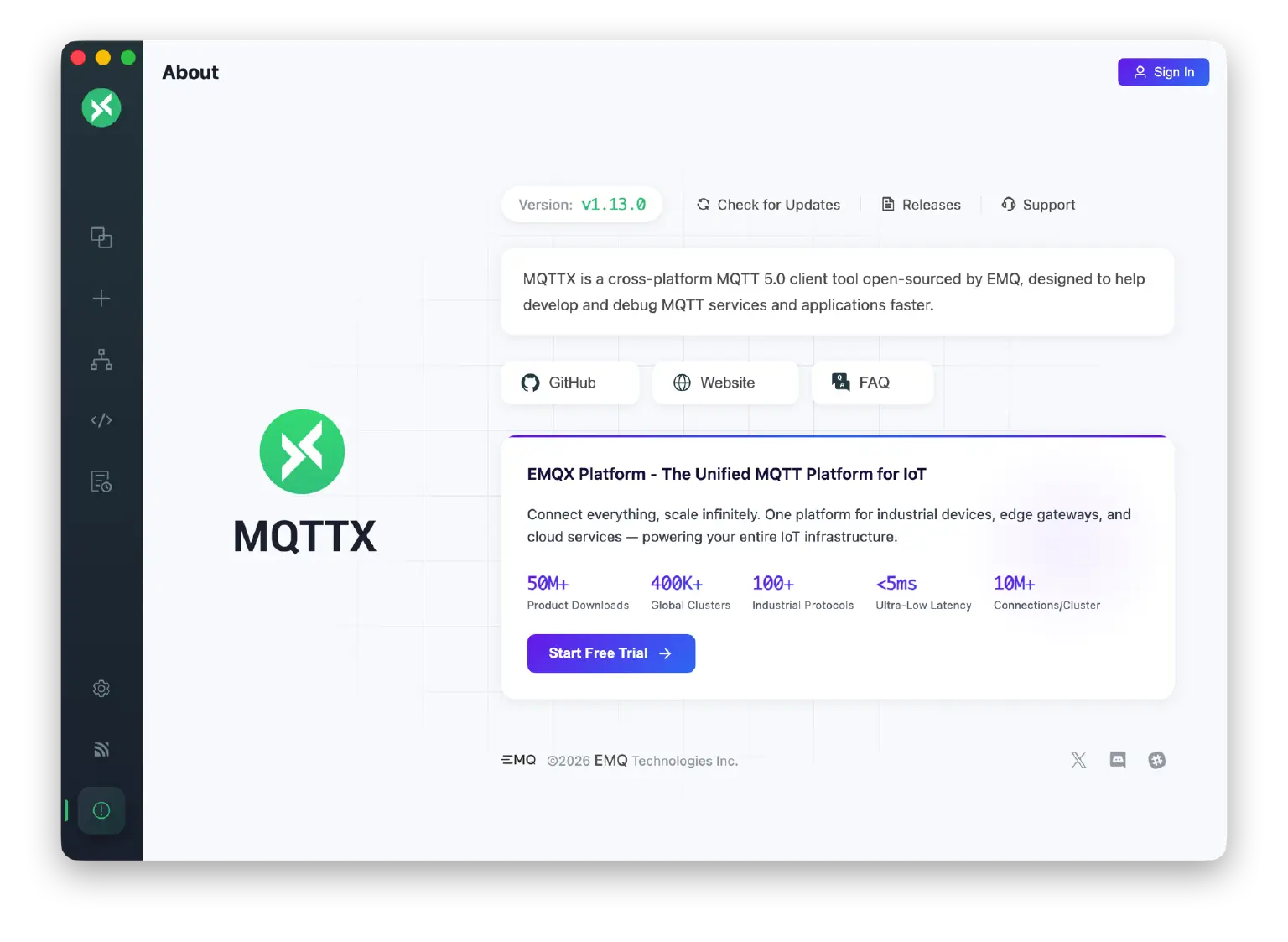
- Desktop: Optimized color scheme and animation transitions, simplified connection list selection styles, redesigned Help and About page layouts
- Web: Added JSON Payload syntax highlighting, synced Desktop UI optimizations
Performance & Compatibility Improvements
- Electron 39 Upgrade: Resolves UI stuttering and response delays on macOS 26 Tahoe, brings better rendering performance and memory management
- Windows Portable Version: Added Portable version, download and extract to use without installation
- Cross-platform Compatibility: Fixed Windows build script compatibility issues using cross-env
Bug Fixes
- Fixed issue where editing a disabled topic would unexpectedly enable it (#2007)
- Fixed issue where pressing Enter in Topic input field inserted line breaks (#2001)
- Fixed Meta button red dot position misalignment
- Fixed Web version Topic input field forced line break issue
Roadmap
- MQTTX 2.0 Refactor: In progress
- MCP over MQTT Support: Support Model Context Protocol for AI Agent interaction with MQTT devices
- AI Agent Mode: Desktop and CLI support for AI Agent mode
- Protobuf Message & Subscription Route Mapping: Configure different Protobuf decode Schemas for different subscription topics
- MQTTX Viewer Enhancement: Dashboard View, System Topic View, and other visualization features
- Configurable Disconnect Properties: Support MQTT 5.0 disconnect property configuration
- IoT Scenario Data Simulation: Integrate more IoT scenario data simulation capabilities
- Sparkplug B Support: Extend MQTTX to support Sparkplug B protocol
- Plugin System: Support protocol extensions like CoAP, MQTT-SN, Kafka, MessageQueue
- Script Test Automation (Flow): Simplify creation and management of automated testing workflows