From PLC to MQTT in 10 Minutes: A Zero‑Code Path to Industrial Connectivity


Connecting PLC data to MQTT is the first step in modern industrial digitalization. MQTT, as a lightweight messaging protocol, has become the de facto standard for Industrial IoT. It handles unstable network environments well, supports real-time data streaming, and is natively supported by almost all cloud platforms, data analytics tools, and MES systems.
However, in real factory environments, connecting PLC data to MQTT is far more complex than imagined. PLCs from different manufacturers use different communication protocols (Modbus, OPC UA, Siemens S7, Ethernet/IP...), and traditional solutions require writing driver code for each protocol, resulting in high deployment and maintenance costs.
This article introduces an easy approach using EMQX Neuron and demonstrates how to connect any PLC to MQTT in just 10 minutes, without writing any code.
Why is PLC to MQTT So Difficult?
Before diving into the solution, let's understand the nature of the problem.
Protocol Fragmentation
Factory floor equipment comes from different eras and manufacturers:
| PLC Manufacturer | PLC Models | Protocols |
|---|---|---|
| Siemens | S7-200/300/400, S7-1200/1500 | Siemens S7, OPC UA |
| Rockwell Automation | MicroLogix, ControlLogix, CompactLogix | Ethernet/IP |
| Mitsubishi | FX Series, Q Series, A Series | Mitsubishi 1E, Mitsubishi 3E |
| Omron | CS Series, CJ Series, CP Series, NJ Series | FINS TCP, FINS UDP |
| Beckhoff | CX Series, C Series | Beckhoff ADS, Modbus |
Each protocol has its own data format, addressing method, and communication mechanism. Traditional solutions require developing and maintaining independent drivers for each protocol.
Inconsistent Data Formats
Even after successfully collecting data, the data formats from different PLCs vary greatly:
- Register addresses:
40001(Modbus) vsDB1.DBD0(Siemens) vsN7:0(Allen-Bradley) - Data types: INT16, FLOAT, BOOL, STRING...
- Byte order: Big-endian vs Little-endian
This data needs to be standardized before being sent to MQTT.
Deployment and Maintenance Costs
Traditional integration solutions often rely on dedicated hardware gateways, which not only have high initial procurement costs but also incur a series of hidden expenses: deploying and debugging hardware gateways requires professional engineers on-site, which is time-consuming and labor-intensive; driver adaptation for different PLC protocols, firmware upgrades, and troubleshooting all require additional technical service fees.
EMQX Neuron: Connectivity Gateway for Industrial IoT
EMQX Neuron is an industrial edge Connectivity gateway designed specifically for industrial scenarios, integrating protocol conversion, data processing, and MQTT publishing into a lightweight software package.
EMQX Neuron supports over 100 industrial protocols, from Modbus and OPC UA to Siemens S7. Acting as your universal industrial data hub, it collects data from all your disparate factory assets and standardizes it for analysis and action.
Complete protocol list: Data collection plugin list | EMQX Neuron Docs
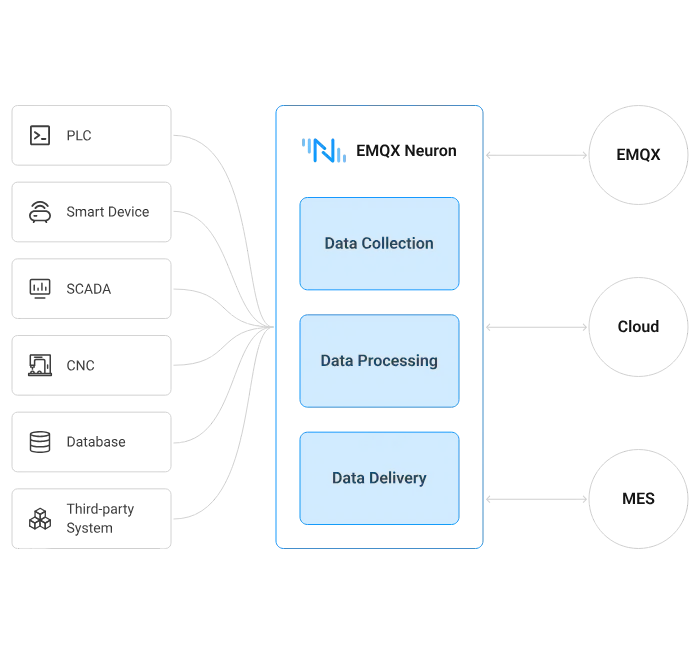
Extreme Ease of Use: Zero-Code & Automated Configuration
EMQX Neuron significantly lowers the technical barrier for PLC integration, allowing engineers to focus on business logic rather than protocol intricacies:
- Automated Tag Discovery: For modern protocols like OPC UA, Neuron supports one-click scanning of southbound device tags. It automatically identifies and imports the internal data structure of the PLC, eliminating the need for manual register address entry.
- Batch Management & Rapid Migration: Supports bulk import and export of tags and drivers. For large-scale projects with tens of thousands of data tags, engineers can complete configurations via Excel/CSV templates, dramatically increasing deployment efficiency.
- Intuitive Connectivity Diagnostics: Built-in network connection test tools and driver status monitoring modules allow for real-time tracking of latency, sent/received bytes, and error rates for each driver. This enables O&M personnel to locate communication faults in seconds.
- Visual Monitoring & Control: Users can observe real-time data streams through a Web interface and perform reverse write operations to PLC registers, achieving seamless closed-loop control.
Superior Performance: High Throughput & Low Latency
Neuron does more than just "connect"; it ensures "steady transmission" even in high-load industrial environments:
- 100,000+ Tags per Neuron Instance: In typical test scenarios (such as Siemens S7 drivers), Neuron can manage 10 drivers simultaneously, each configured with 10 collection groups, collecting 100,000 floating-point tags per second. This meets the data demands of large-scale production lines.
- Minimal Resource Footprint: Even when processing 50,000 concurrent tags, memory usage is only approximately 355MB, with CPU usage maintained at around 25%. This allows Neuron to run easily on lightweight edge hardware like Raspberry Pi and industrial gateways.
- Millisecond-Level Response: It features millisecond-level response time for data delivery, ensuring the real-time performance of control commands transmitted from the cloud or edge side to PLCs.
10-Minute Hands-On: Modbus PLC to MQTT
We’ll walk through the entire process with a complete hands-on example to showcase how simple it is with EMQX Neuron.
Architecture Overview

Prerequisites
- PLC or Simulator: This example uses a Modbus TCP simulator (PeakHMI Slave Simulators)
- EMQX Neuron: Quick deployment via Docker
- MQTT Broker: Using public broker
broker.emqx.io - MQTT Client: Using MQTTX to verify data
Step 1: Start EMQX Neuron
# Pull Docker image
docker pull emqx/neuronex:latest

# Start container
docker run -d --name neuronex -p 8085:8085 --log-opt max-size=100m --privileged=true emqx/neuronex:latest
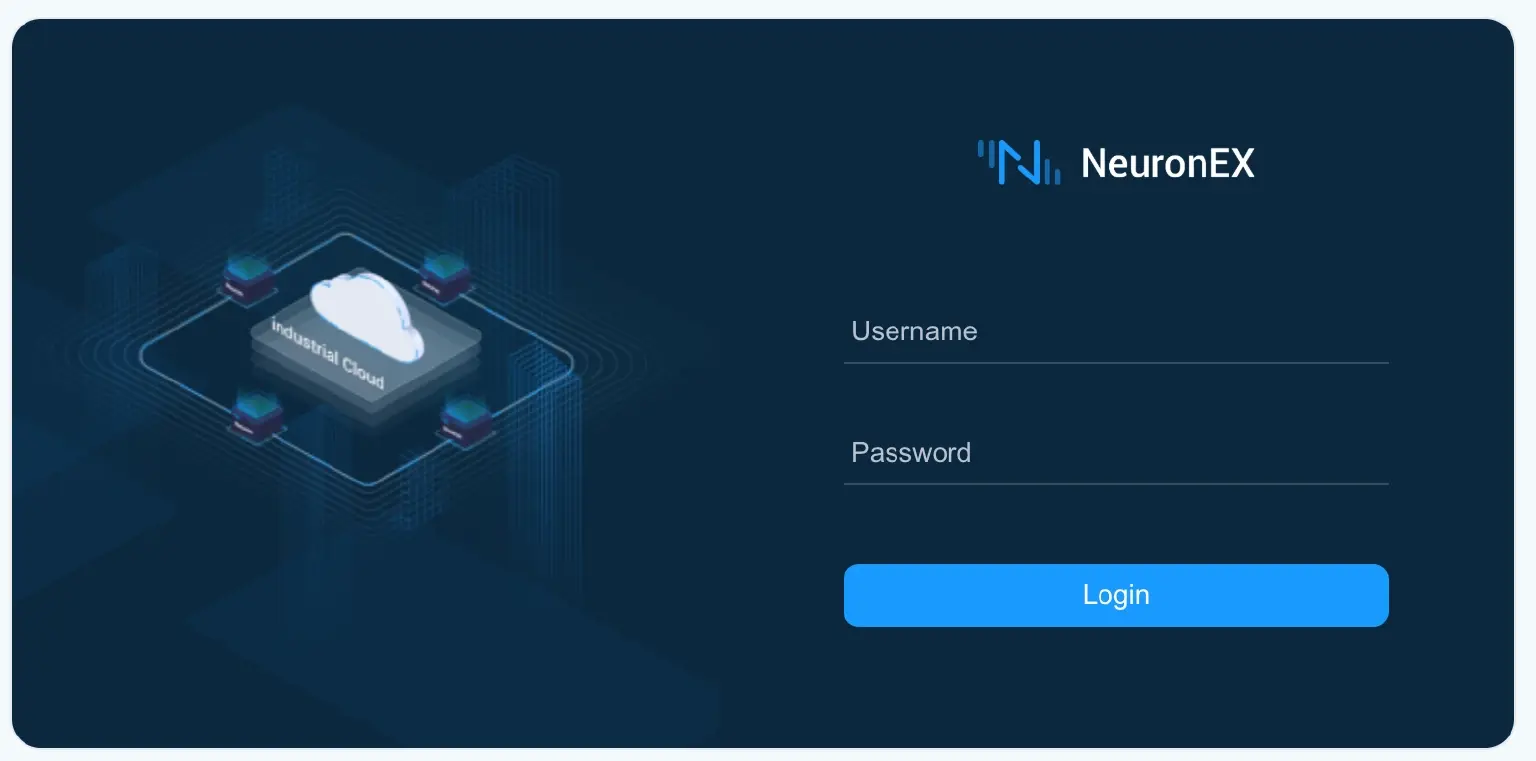
Access <http://localhost:8085> and login with default credentials:
- Username:
admin - Password:
0000
Step 2: Add Southbound Device (Data Source)
Southbound devices are the connections between EMQX Neuron and PLCs.
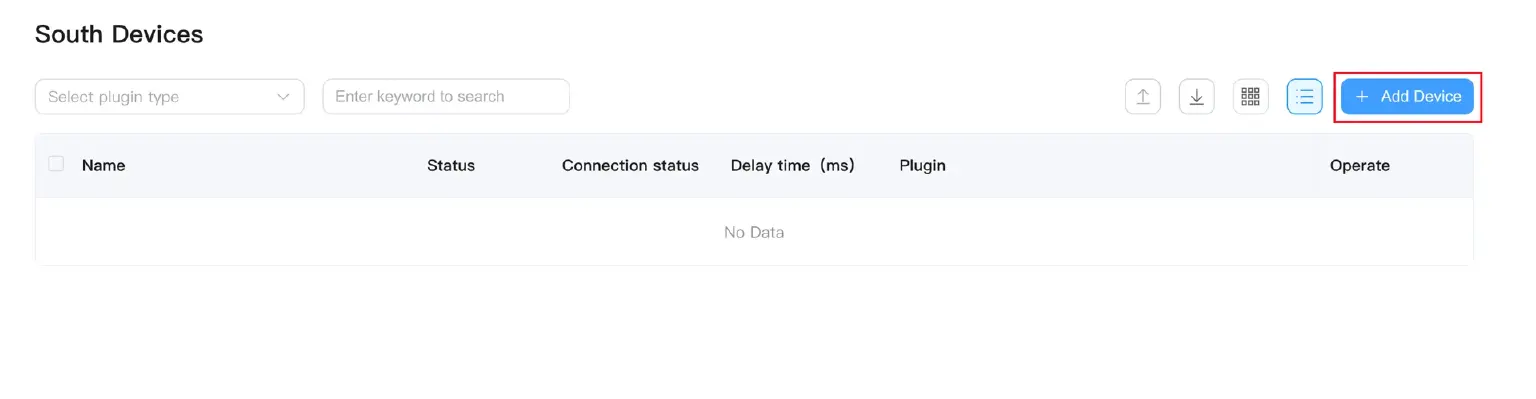
- Navigate to Data Collection → South Devices
- Click Add Device
- Configure device parameters:
- Name:
modbus-tcp-1 - Plugin: Select "Modbus TCP"
- IP Address: Enter simulator IP (e.g.,
192.168.1.100) - Port:
502(Modbus TCP default port) - Keep other parameters as default
- Name:
- Click Add Device
Step 3: Create Collection Group and Tags
Collection groups are used to organize data tags, with each group having an independent collection frequency.
3.1 Create Collection Group
- Click on the newly created
modbus-tcp-1device card - Click Create Group
- Configure group parameters:
- Group Name:
group-1 - Collection Interval:
1000(milliseconds, i.e., collect once per second)
- Group Name:
3.2 Add Data Tags
- Click on the Tag List of the
group-1group - Click Add Tags
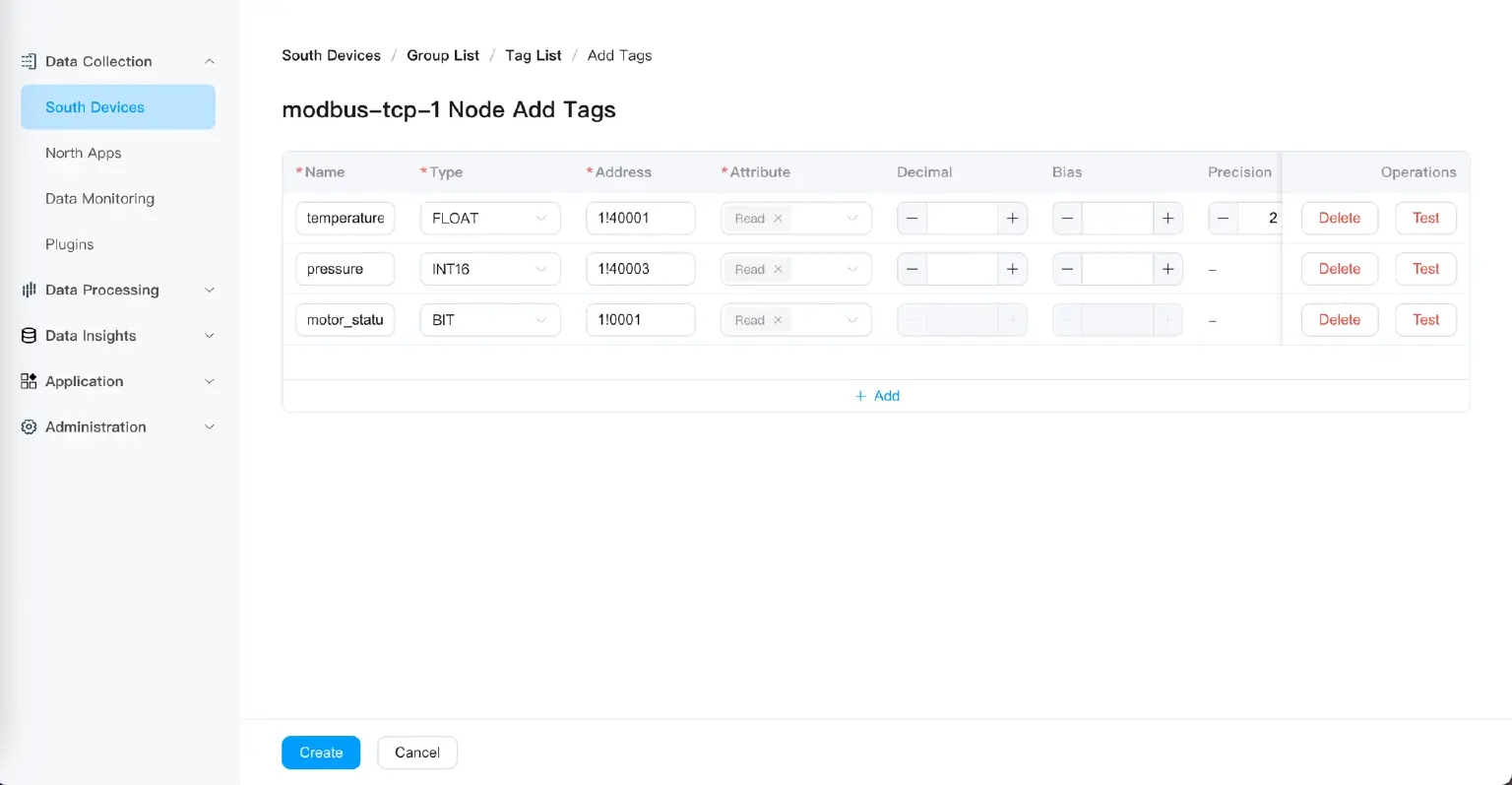
- Configure tag parameters:
| Tag Name | Attribute | Data Type | Address | Description |
|---|---|---|---|---|
| temperature | Read | FLOAT | 1!40001 | Temperature sensor |
| pressure | Read | INT16 | 1!40003 | Pressure sensor |
| motor_status | Read | BIT | 1!00001 | Motor status |
Address Format Explanation:
1!40001:1is the station number,40001is the holding register address1!00001:1is the station number,00001is the coil address
- Click Create
After completing tag creation, the device status will automatically change to Connected.
Step 4: Verify Data Collection
- Navigate to Data Collection → Data Monitoring
- Select southbound device:
modbus-tcp-1 - Select group:
group-1 - View real-time data
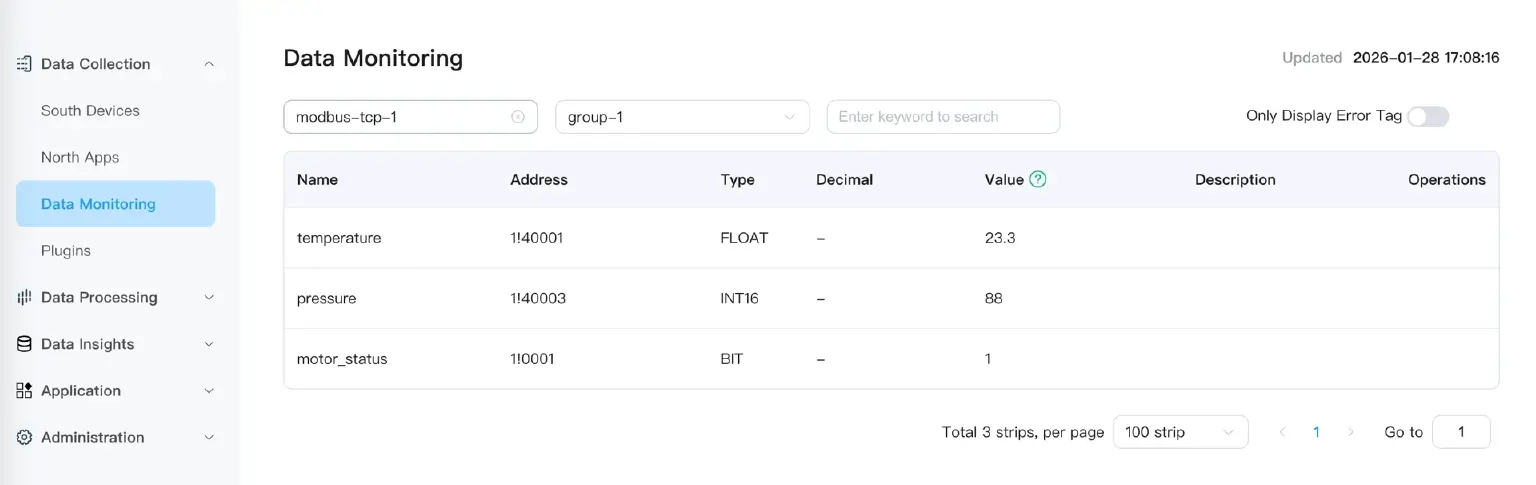
You will see real-time values for each tag.
Step 5: Configure Northbound Application (MQTT Publishing)
Northbound applications are used to send collected data to external systems.
5.1 Create MQTT Application
- Navigate to Data Collection → Northbound Applications
- Click Add Application
- Configure application parameters:
- Name:
mqtt-broker - Plugin: Select "MQTT"
- Name:
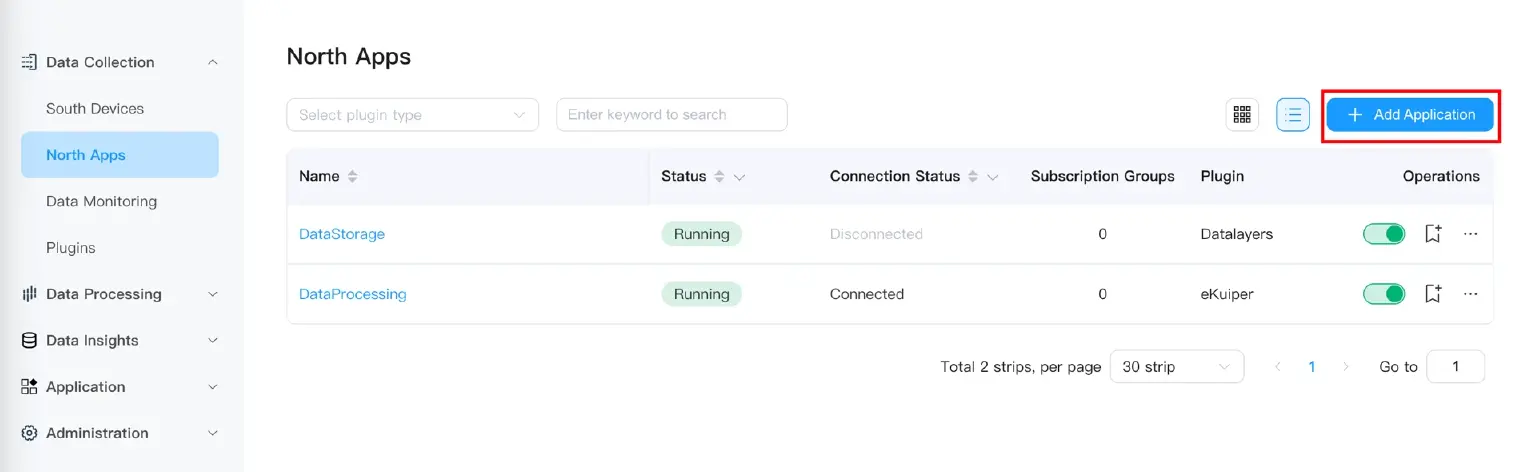
5.2 Configure MQTT Connection
- Fill in the application configuration page:
- Server Address:
broker.emqx.io(public MQTT Broker) - Server Port:
1883 - Client ID:
neuron-client-001(or default) - Username/Password: Leave blank (public broker requires no authentication)
- Server Address:
- Click Submit
The application status will change to Running.
5.3 Subscribe to Southbound Data Group
- Click View Subscriptions on the
mqtt-brokerapplication - Click Add Subscription
- Configure subscription parameters:
- Topic:
factory/line1/modbus-tcp-1/data(custom topic) - Subscribe to Southbound Driver Data: Select
modbus-tcp-1→group-1
- Topic:
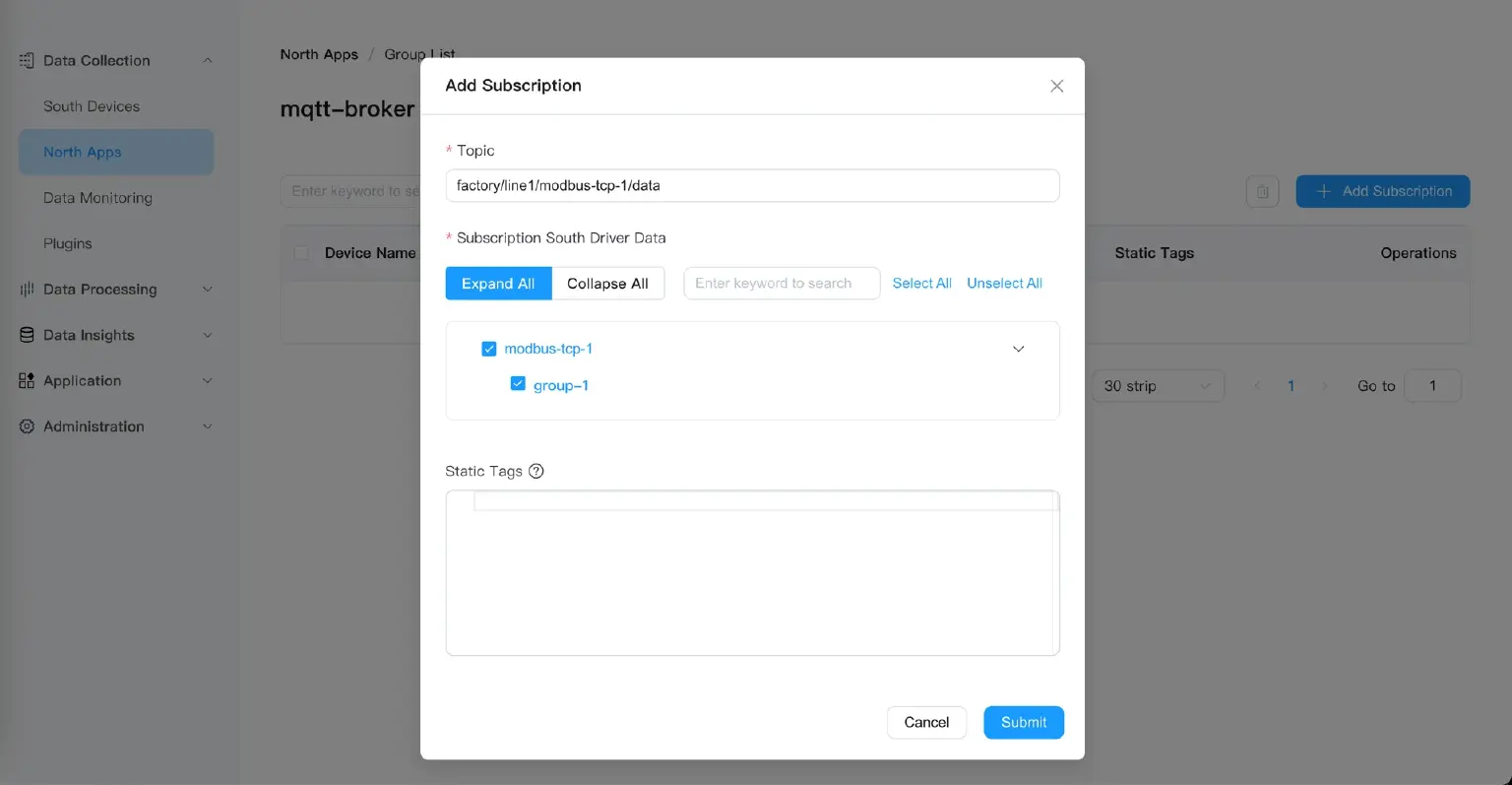
- Click Submit
Step 6: Verify MQTT Data
Use MQTTX client to verify that data is successfully published to the MQTT Broker.
- Open MQTTX and create a new connection:
- Name:
Test Connection - Host:
broker.emqx.io - Port:
1883
- Name:
- Add subscription:
- Topic:
factory/line1/modbus-tcp-1/data
- Topic:
- View received data:
{
  "timestamp": 1706745600000,
  "node_name": "modbus-tcp-1",
  "group_name": "group-1",
  "values": {
    "temperature": 75.5,
    "pressure": 120,
    "motor_status": 1
  }
}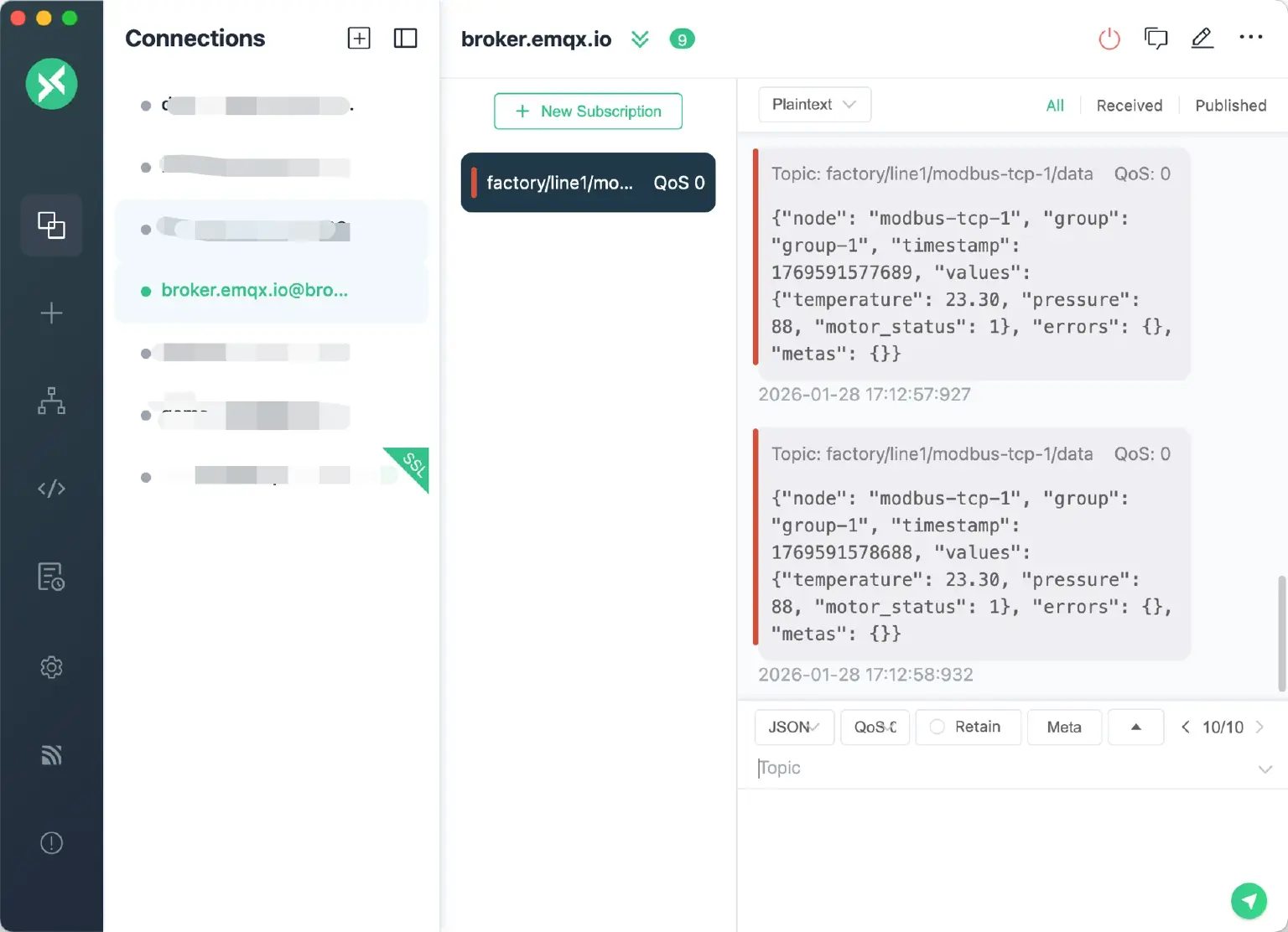
Congratulations! You have completed the entire data pipeline from Modbus PLC to MQTT.
Advanced: Support for More PLC Protocols
The example above uses a Modbus simulator for data collection. EMQX Neuron supports over 100 industrial protocols, with a connection process as simple as this article shows.
Find detailed tutorials here:
- Siemens S7-1200 PLC: Connecting Siemens S7-1200 PLC to MQTT in 10 Minutes with NeuronEX
- Omron NX1P series PLCs: Connect to NX1P | Neuron Docs
- Siemens S7300 series PLCs: Siemens S7300 PLC Connection Example | EMQX Neuron Docs
- Mitsubishi FX series PLCs: Connect to FX5U | EMQX Neuron Docs
- Mitsubishi Q series PLCs: Connect to Q03UDE | EMQX Neuron Docs
- Beckhoff CX series PLCs: Data Acquisition with Beckhoff ADS Plugin | EMQX Neuron Docs
- Inovance Easy series PLCs: Connect to Easy521 | EMQX Neuron Docs
Advanced: Edge Data Processing
EMQX Neuron not only collects and forwards data but also performs real-time data processing at the edge.
Use Cases
- Data Filtering: Upload only data exceeding thresholds (e.g., temperature > 80°C)
- Data Transformation: Unit conversion (PSI → Bar), numerical calculations (+1, ×0.9)
- Data Aggregation: Calculate average, maximum, minimum values
- Alert Triggering: Real-time anomaly detection and alert sending
Quick Example: Temperature Threshold Alert
Scenario: Send an alert to a separate MQTT topic when the temperature exceeds 80°C.
1. Subscribe Data to Data Processing Module
In Data Collection → Northbound Applications, find the default DataProcessing application and add a subscription:
- Subscribe to
modbus-tcp-1→group-1
Data will automatically flow into the neuronStream data stream of the data processing module.
2. Create Processing Rule
Navigate to Data Processing → Rules, click New Rule:
SQL Statement:
SELECT
  timestamp,
  node_name,
  values.temperature as temp
FROM neuronStream
WHERE values.temperature > 80
3. Configure Action (Sink)
In the Actions module, click Add and select "MQTT":
- Server Address:
broker.emqx.io:1883 - Topic:
factory/alerts/high-temperature - Data Template:
{
  "alert_type": "high_temperature",
  "device": "{{.node_name}}",
  "temperature": {{.temp}},
  "timestamp": {{int64 .timestamp}}
}
4. Verify Alert
Subscribe to factory/alerts/high-temperature in MQTTX. When the temperature exceeds 80°C, you will receive an alert message.
Get Started Today
Connecting PLCs to MQTT should not be a complex, expensive, and time-consuming project. EMQX Neuron simplifies the entire process through:
- 100+ Protocols Out-of-the-Box: No need to write drivers for each PLC
- Zero-Code Configuration: Web interface visual operation, complete configuration in 10 minutes
- Lightweight Deployment: Docker container, 200MB+ image, 256MB memory
- Edge Computing Capabilities: SQL stream processing + AI algorithm integration
Start your industrial digitalization journey today and let data flow.
Download and Install
Docker Deployment:
docker pull emqx/neuronex:latest
docker run -d --name neuronex -p 8085:8085 --log-opt max-size=100m --privileged=true emqx/neuronex:latest
Other Installation Methods:
- Download page: Download EMQX Neuron
- Installation documentation: Install EMQX Neuron | EMQX Neuron Docs
Learning Resources
- Quick Start: Quick Start | EMQX Neuron Docs
- Driver List: Data collection plugin list | EMQX Neuron Docs
- Best Practices: Best Practices | EMQX Neuron Docs
Get Support
- Technical Support: support@emqx.io
- Business Inquiries: sales@emqx.com
Free Trial
Apply for a 30-day free trial license: https://www.emqx.com/en/try?product=neuronex