Connecting Siemens S7-1200 PLC to MQTT in 10 Minutes with NeuronEX


Introduction: Bridging the Gap Between OT and IT
In the wave of Industry 4.0, seamlessly integrating real-time device data from the OT (Operational Technology) layer with cloud applications in the IT (Information Technology) layer is key to unlocking data potential and achieving smart manufacturing. The Siemens S7-1200 PLC, a cornerstone of industrial automation, contains a vast amount of production status and equipment parameter data. Efficiently and reliably transmitting this valuable OT data to an MQTT Broker for use by MES, SCADA, or cloud-based AI analytics platforms is a common challenge for many enterprises.
Traditional solutions often involve complex programming and protocol conversion, which are both time-consuming and labor-intensive. Now, with the powerful industrial edge gateway software, NeuronEX, you can easily build a stable data bridge from a Siemens S7-1200 PLC to MQTT in under 10 minutes, all in a no-code fashion.
This article will provide a step-by-step guide to walk you through the entire configuration process, from PLC setup to successfully viewing data in an MQTT client.
Architecture
This tutorial aims to read specified variable data from a Siemens S7-1200 PLC, send the data in JSON format to a designated MQTT Broker, and verify the data using the MQTTX client software. The technical architecture consists of three core components:
- Data Source: Siemens S7-1200 PLC
- Data Collection Software: NeuronEX
- Data Destination: EMQX (this article uses the public broker
broker.emqx.ioas an example) - MQTT Client Tool: MQTTX

Prerequisites
Before you begin, please ensure you have the following:
- A Siemens S7-1200 PLC and TIA Portal programming software.
- NeuronEX: Quickly deploy it via Docker with a single command.
# Start NeuronEX docker run -d --name neuronex -p 8085:8085 --log-opt max-size=100m --privileged=true emqx/neuronex:latest - An MQTT Client: We will use MQTTX to verify the data later.
Connecting Siemens S7-1200 PLC to MQTT
Step 1: Configure Siemens S7-1200 PLC
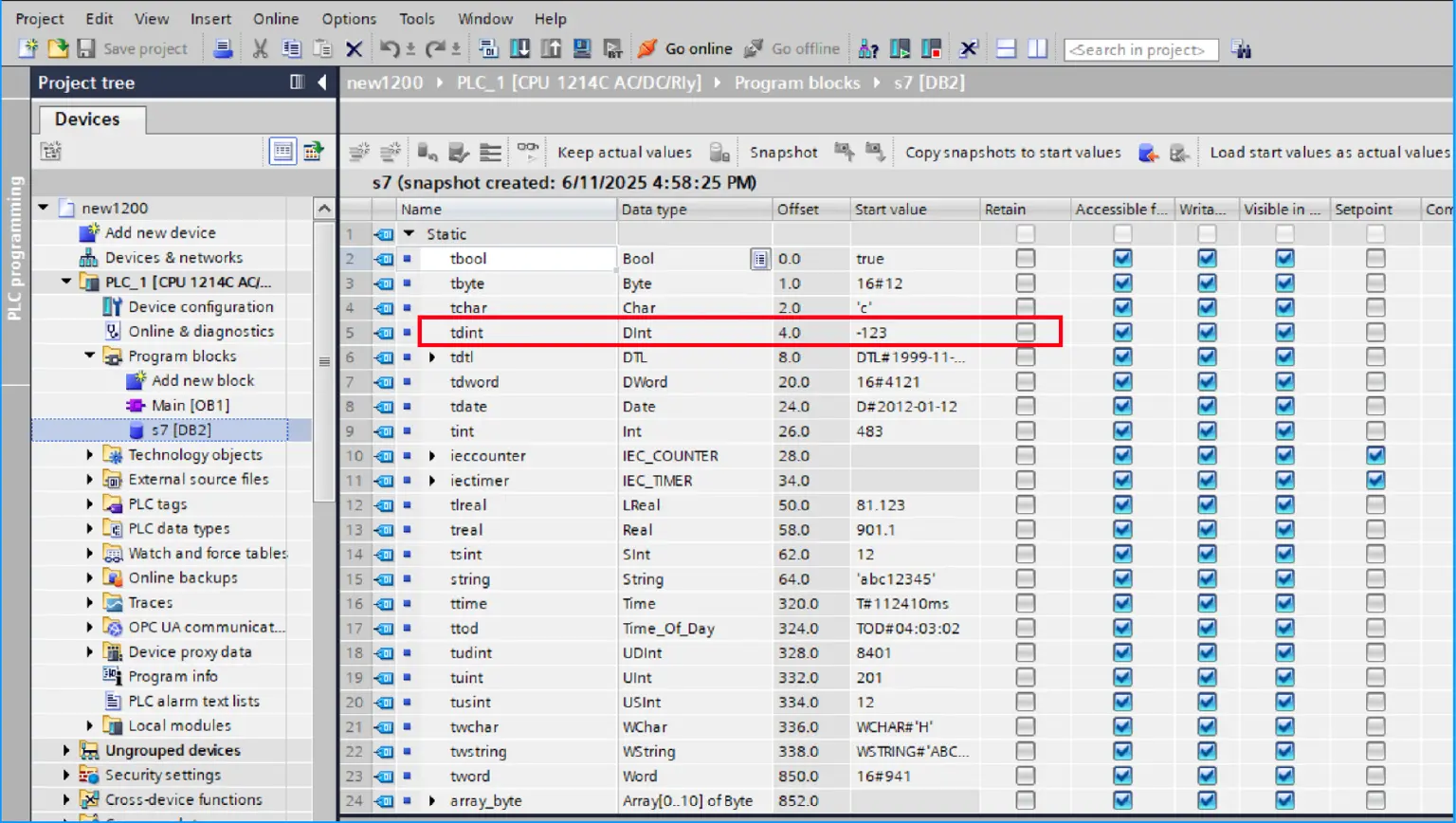
To allow NeuronEX to access PLC data, ensure that the network between NeuronEX and the S7-1200 is clear. We will use NeuronEX to collect data from the Data Block (DB2) and M area of the Siemens S7-1200. The tags to be collected from the data block (DB2) are shown in the red box in the figure below:
Step 2: Add a Southbound Device in NeuronEX
Now, let's tell NeuronEX where to read the data from.
- Access the NeuronEX management interface at
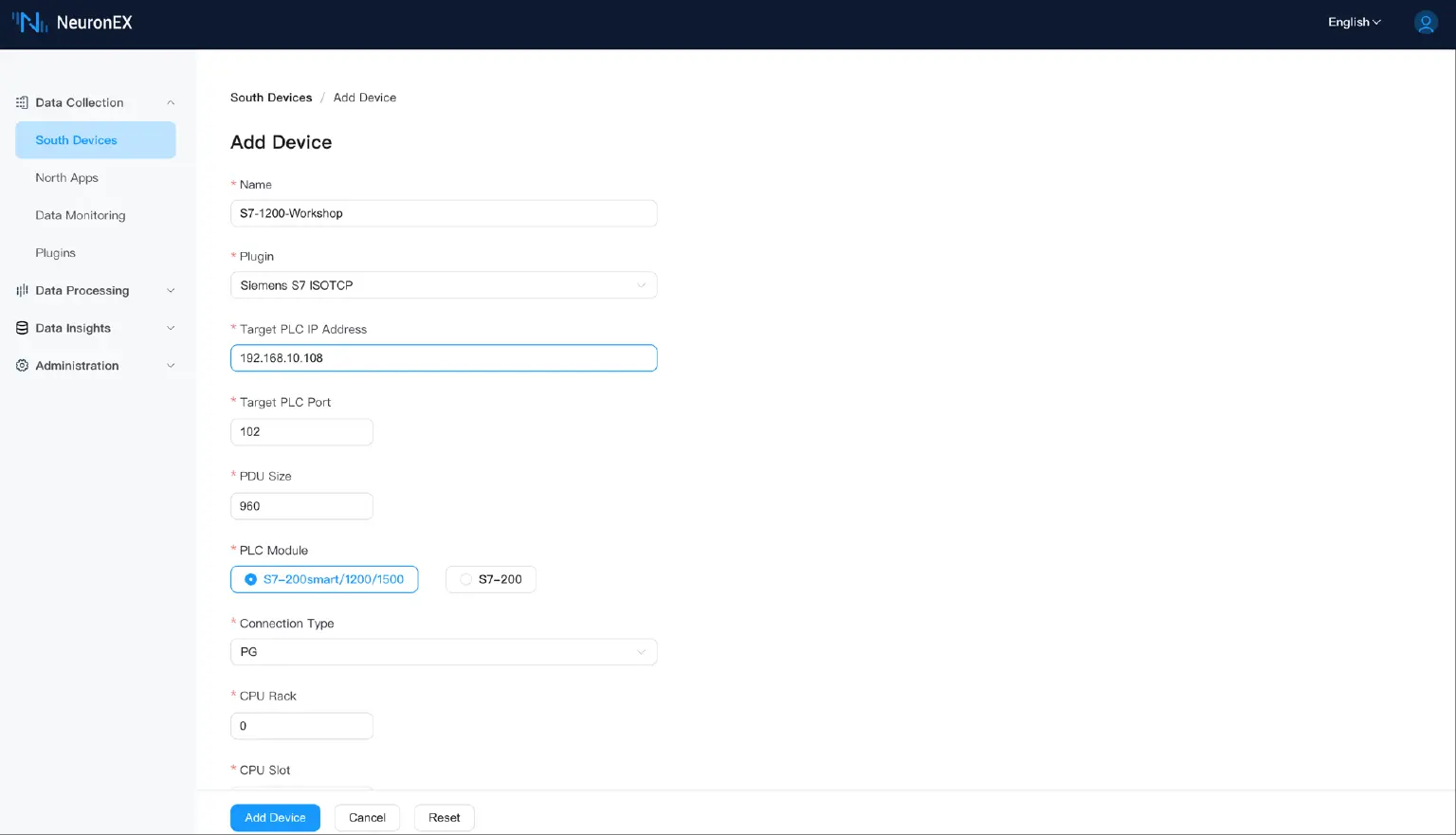
http://localhost:8085 - Navigate to Data Collection -> South Devices and click Add Device. Select the Siemens S7 ISOTCP plugin.
- Fill in the device information:
- Name:
S7-1200-Workshop - Target PLC IP Address: Enter the IP address of your PLC.
- Leave the other parameters at their default values.
- Name:
Step 3: Create Data Tags
This is the core step where you define "what data to collect".
- Click on the newly created
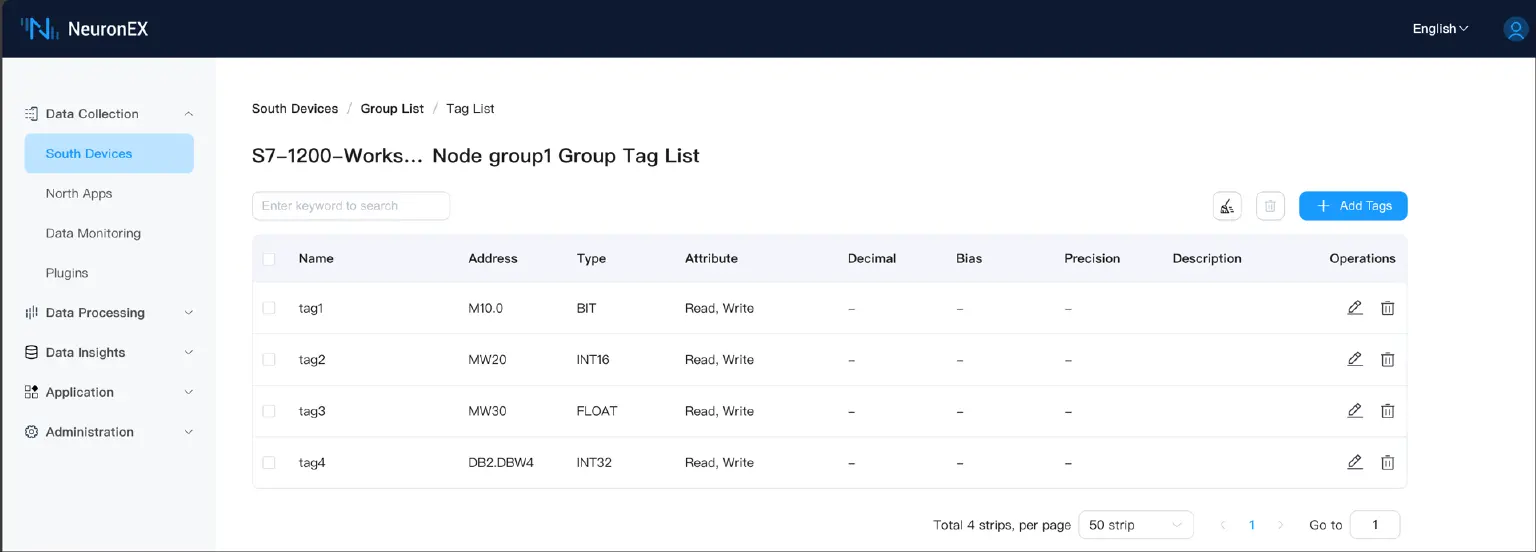
S7-1200-Workshopdriver to enter the Group List page and create a collection group namedgroup1. - Enter the group and start to Add Tag. Add the following tags precisely according to the addresses in your PLC:
| Data Type | PLC Address Example | NeuronEX Configuration | Address Format Description |
|---|---|---|---|
| Bool | M10.0 | Type: BIT, Address: M10.0 | M area, bit 0 of byte 10. |
| Int | MW20 | Type: INT16, Address: MW20 | M area, word starting at address 20. |
| Real | MW30 | Type: FLOAT, Address: MW30 | M area, double word starting at address 30. |
| DINT | DB2.DBW4 | Type: INT32, Address: DB2.DBW4 | In DB2, double word starting at address 4. |
Step 4: Monitor Data Collection
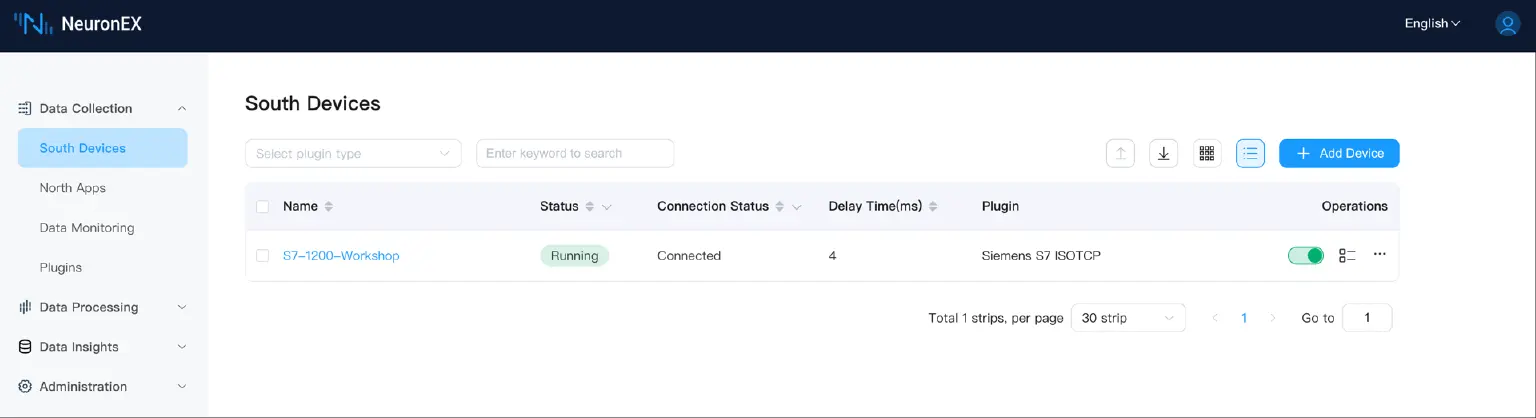
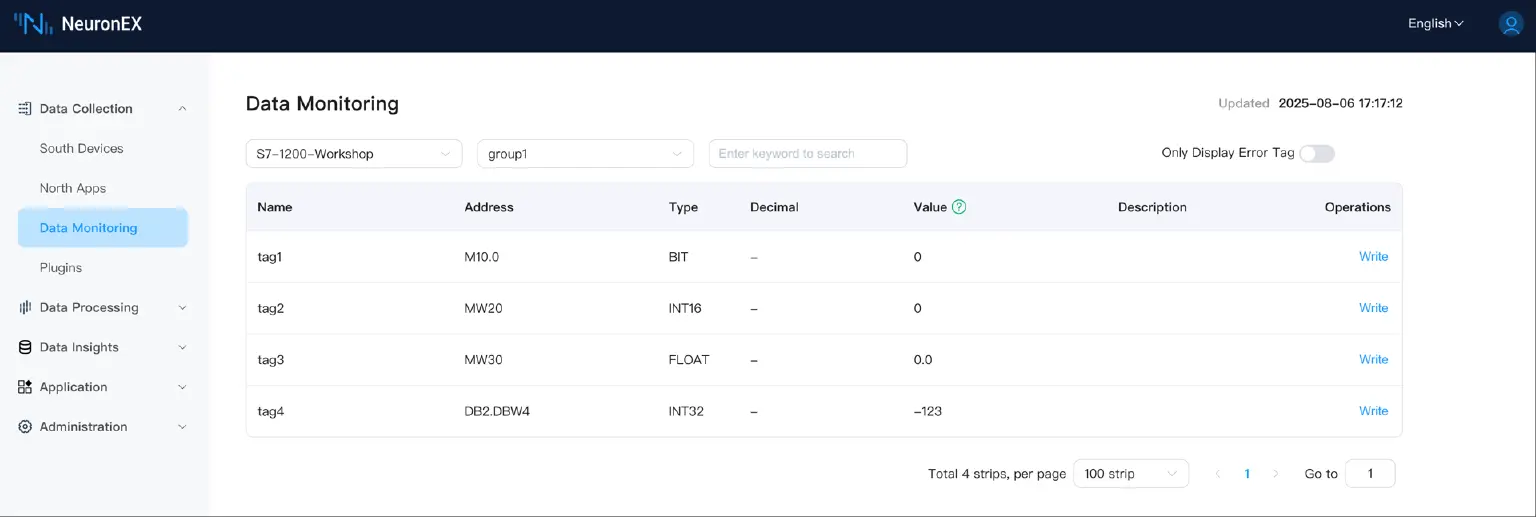
After completing step 3, you can view the real-time status of the S7-1200-Workshop driver on the South Devices page. A Connected status indicates that the connection between NeuronEX and the S7-1200 is connected.
You can view the real-time values of these tags on the Data Collection -> Data Monitoring page. You will see that the value of tag4 is -123, which matches the value in the TIA Portal software.
Step 5: Configure the Northbound MQTT Application
Finally, let's configure the data's destination.
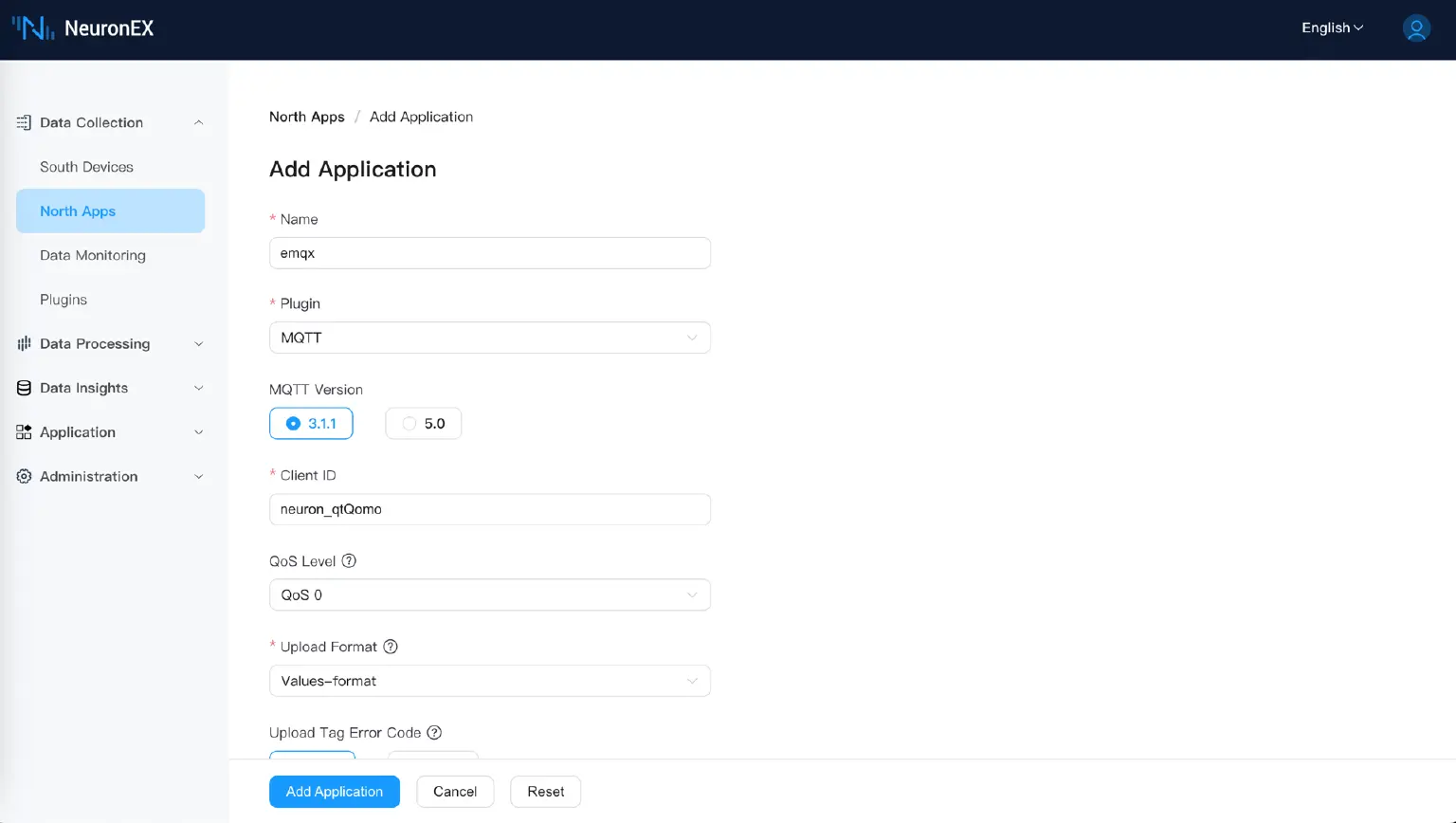
- On the left menu, click North Apps -> Add Application to add a northbound MQTT application.
- Select the MQTT plugin and configure the connection parameters:
- Name:
emqx - Server Address:
broker.emqx.io(Public MQTT Broker) - Port:
1883 - Leave other settings at their default values.
- Name:
- Click Create.
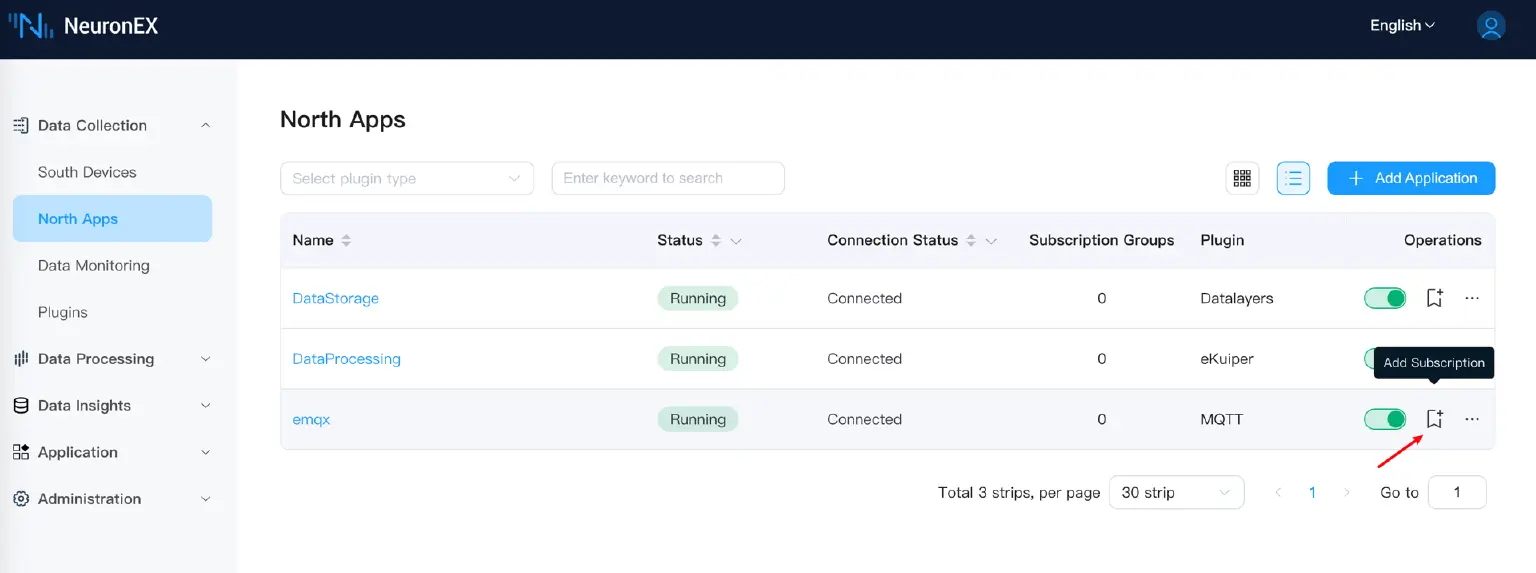
- After creating the MQTT application, click the Add Subscription button.
- Add the collection group from the southbound driver
S7-1200-Workshopto the subscription, and set the publishing MQTT topic toneuronex/s7-1200/data.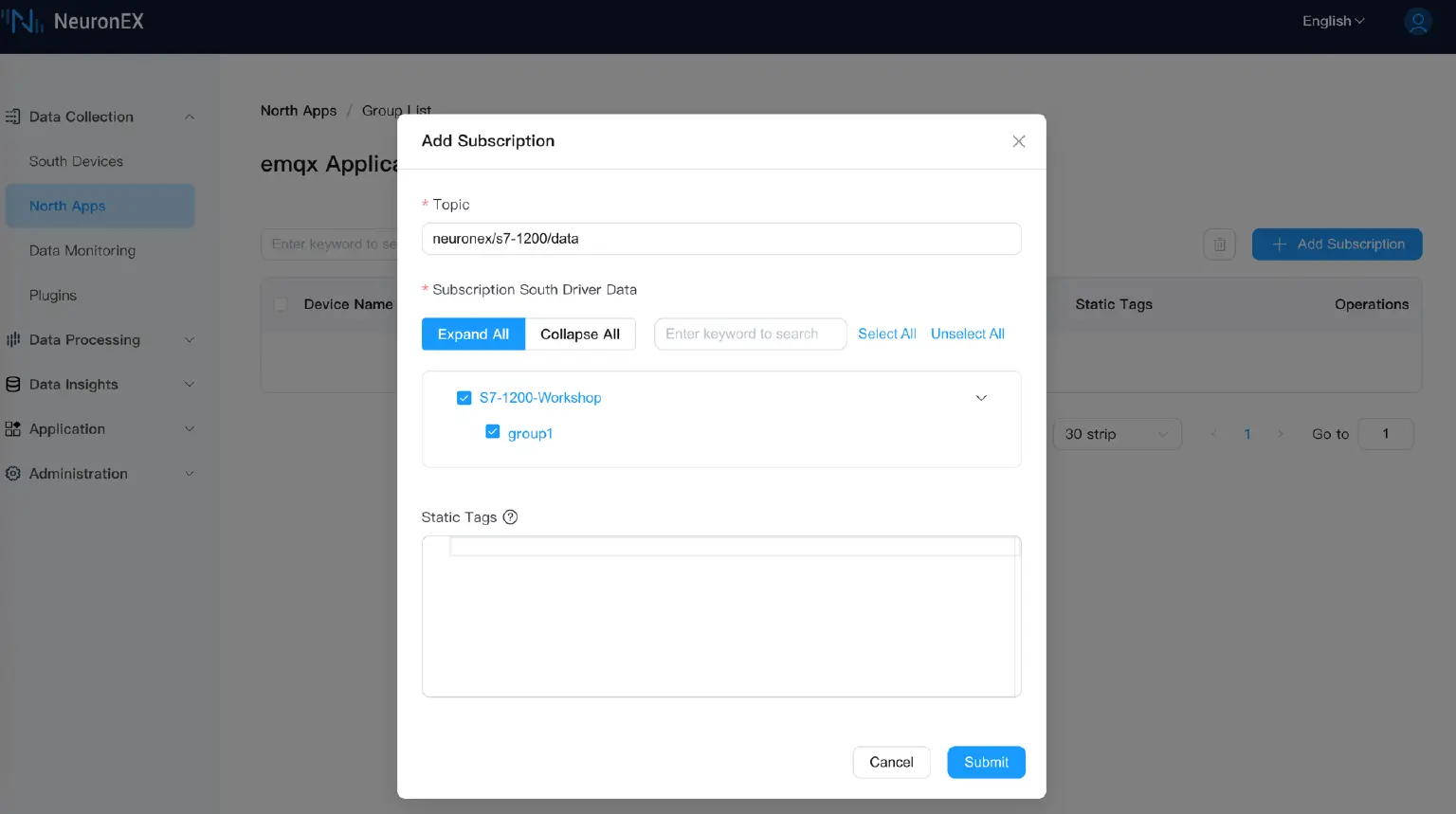
Step 6: Subscribe and Verify Data
This is the final step to complete the data flow.
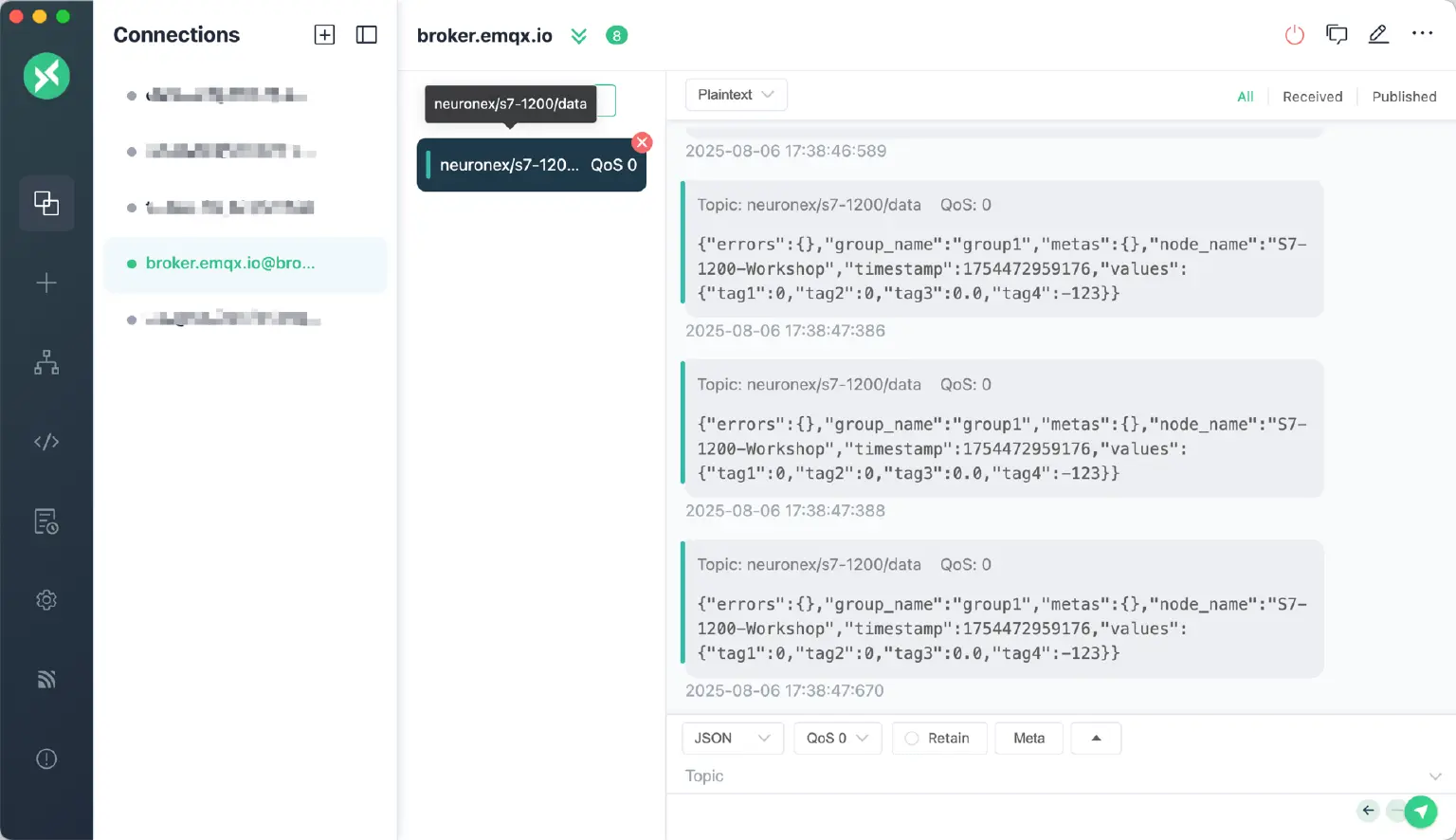
- Open your MQTTX client, create a new connection to
broker.emqx.io:1883, and subscribe to the topicneuronex/s7-1200/data. - You will immediately see the PLC data collected by NeuronEX being continuously pushed to MQTTX in a standard JSON format!
Conclusion
Congratulations! You have successfully connected a Siemens S7-1200 PLC to MQTT within 10 minutes using NeuronEX. The entire process requires no code and is completed through a simple web interface, establishing a stable and efficient channel for industrial data collection and cloud integration.
This demonstrates the powerful capabilities of NeuronEX as a modern industrial edge gateway: it can dive into the OT layer to finely handle device protocols and data tags, and seamlessly integrate with the IT world to easily deliver data to the cloud.
Download NeuronEX now to kickstart your industrial IoT journey: Download NeuronEX.