A Guide to Ingesting MQTT Data to EMQX Tables for Real-Time Monitoring

Introduction
EMQX Tables is a fully managed, built-in time-series database service in EMQX Cloud, powered by GreptimeDB. It provides a seamless way to store, query, and analyze MQTT messages without requiring the setup of an external database or integration pipeline.
Learn more about EMQX Tables: EMQX Tables GA: From MQTT Data Stream to Time-Series Insight in One Platform
EMQX Tables natively integrates with EMQX Broker via the rule engine. For EMQX Dedicated Flex, you can enable secure communication between your EMQX Broker and EMQX Tables deployments with only a few simple clicks in the EMQX Cloud Console, and benefit from the native EMQX Tables Connector for higher throughput and lower latency.
For EMQX Serverless, integration is also supported by using the HTTP Server Connector, allowing you to write MQTT data into EMQX Tables via the public HTTP endpoint:
MQTT Clients -> EMQX Serverless -> Rule Engine (HTTP Connector) -> EMQX Tables -> SQL Analytics
This tutorial will walk you through building this pipeline end-to-end.
Use Case: Smart Factory Monitoring
This guide uses a smart factory as an example. In this scenario, factory devices regularly report time-series telemetry data, including:
- machine_id: Device identifier
- production_line: Associated production line
- temperature: Temperature reading
- vibration: Vibration intensity
- machine_status: Operational state (e.g., running, warning, error)
- ts: Timestamp of the measurement
We will ingest this data via MQTT and store it in EMQX Tables for monitoring, analytics, or alerting.
Preparation
Before configuring EMQX Serverless Data Integration, you need an EMQX Tables deployment and a table ready to receive data.
Create an EMQX Tables Deployment
Follow the official documentation to create an EMQX Tables deployment: Create an EMQX Tables Deployment | EMQX Cloud Docs
Once deployed, note down your Tables deployment host (public endpoint), Username, and Password. They will be required by the Serverless HTTP connector and action.

Create a Database Factory and Table
Next, follow EMQX Tables Quick Start guide. Inside your EMQX Tables deployment:
- Create a database factory
- Create the machine_metrics table:
CREATE TABLE factory.machine_metrics (
    ts TIMESTAMP NOT NULL,
    production_line STRING,
    machine_id STRING,
    temperature DOUBLE,
    vibration DOUBLE,
    machine_status STRING DEFAULT 'running',
    TIME INDEX (ts),
    PRIMARY KEY (production_line, machine_id)
) WITH (
    ttl='7d'
);
We will use this factory and machine_metrics table in the following steps to configure the HTTP connector and action.
Configure EMQX Serverless to Write MQTT Data into EMQX Tables
In this section, we will:
- Create an HTTP Server Connector
- Create a Rule to process incoming MQTT data
- Create an HTTP Server Action that writes the data into EMQX Tables
- Publish sample messages using MQTTX
- Query the table to verify ingestion
Step 1: Create the HTTP Server Connector
- Go to your EMQX Serverless deployment.
- Click Data Integration from the left menu to access the Data Integration page.
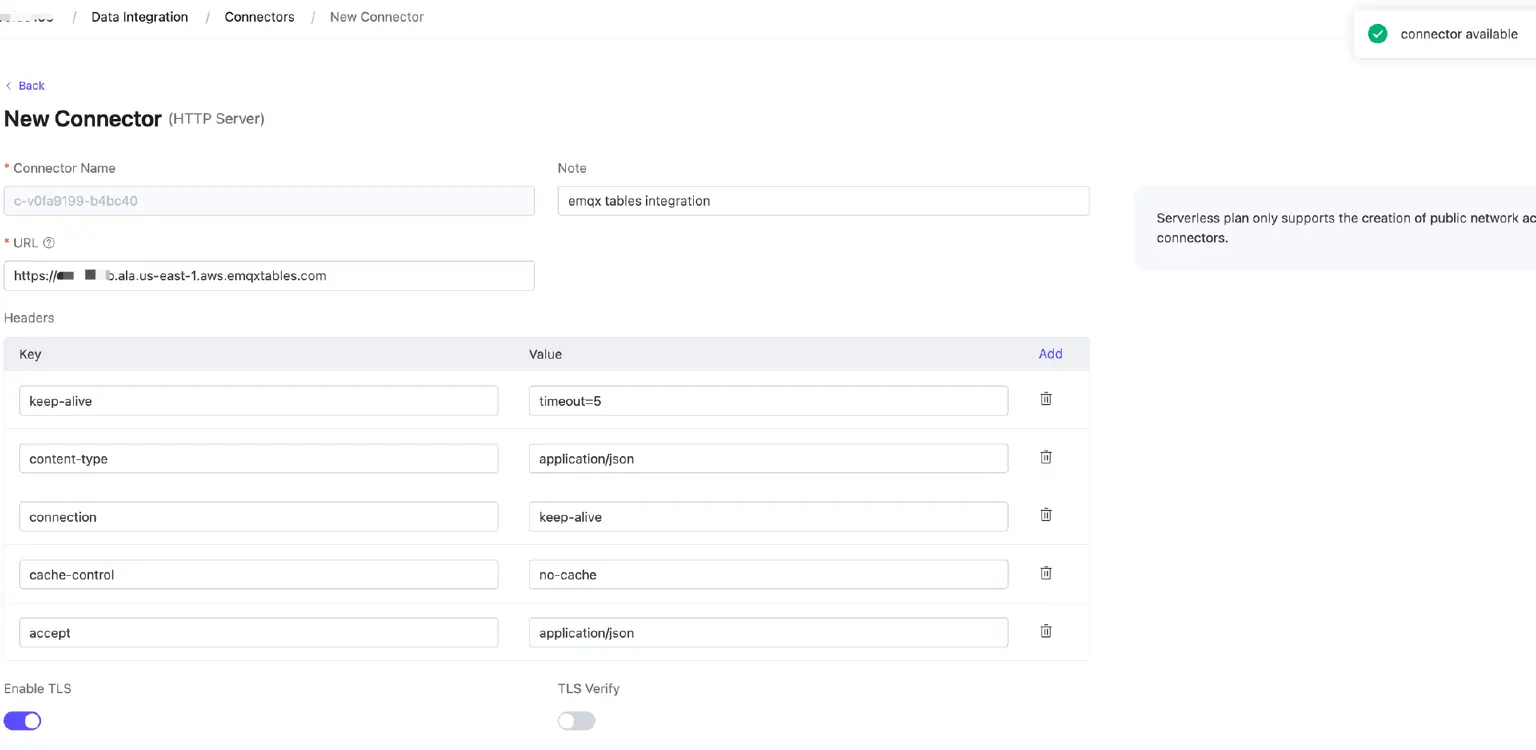
- Create a new HTTP Server connector:
- URL -
https://<your-tables-deployment-public-endpoint> - TLS: Enable TLS but disable TLS Verify
- Keep other settings as default
- URL -
- Click the Test button to test the connection. You’ll see a success prompt returned.
- Click the New button to complete the creation.
Step 2: Create a Rule for MQTT Messages
Use the following SQL Example in the Rule:
SELECT
  timestamp as ts,
  payload.production_line as production_line,
  payload.machine_id as machine_id,
  payload.temperature as temperature,
  payload.vibration as vibration,
  payload.machine_status as machine_status
FROM
  "factory/machine/metrics"
This rule extracts data from incoming JSON messages on the topic factory/machine/metrics.
Step 3: Create the HTTP Server Action
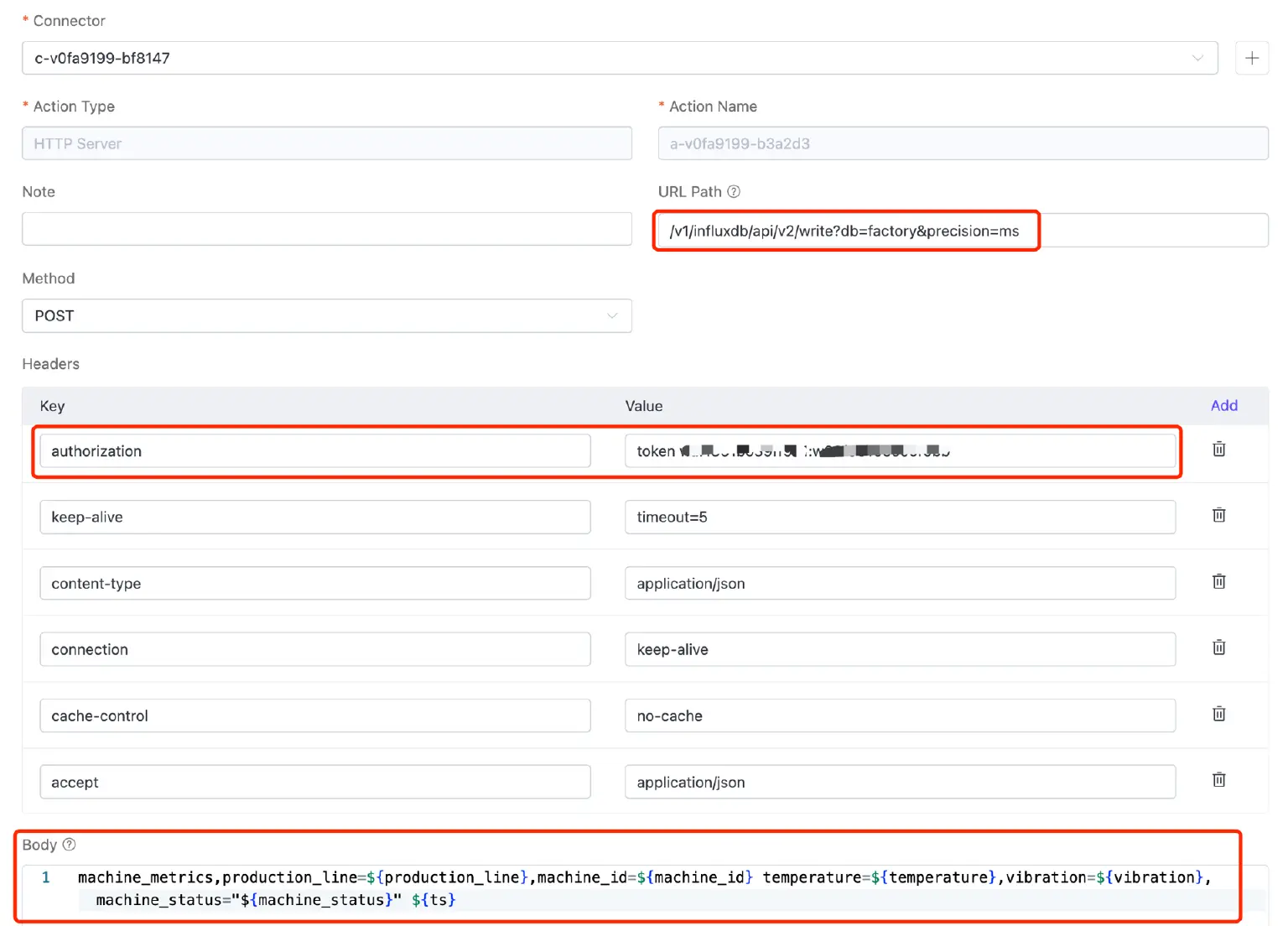
Since EMQX Tables supports the InfluxDB Line Protocol, we’ll use InfluxDB line protocol v2 format and send the data via HTTP POST to EMQX Tables.
- Connector: select the one created in Step 1
- Action Type: HTTP Server
- URL Path: /v1/influxdb/api/v2/write?db=factory&precision=ms
- Method: POST
- Authorization: in the Headers section, add a new Key “authorization” with the following Value format:
token {{username}}:{{password}}
NOTE: Replace and with your actual values from your Tables deployment Overview page. This header is used to carry authenticated credentials. - Body: use the following template
machine_metrics,production_line=${production_line},machine_id=${machine_id} temperature=${temperature},vibration=${vibration},machine_status="${machine_status}" ${ts}
Step 4: Publish Test MQTT Data and Query the Data in EMQX Tables
- Use MQTTX or any other client tool to publish the following payload to the topic
factory/machine/metrics:{ "production_line": "A1", "machine_id": "M100", "temperature": 56.2, "vibration": 0.83, "machine_status": "running" } - Go to your EMQX Tables deployment. Click Data Explorer from the left menu.
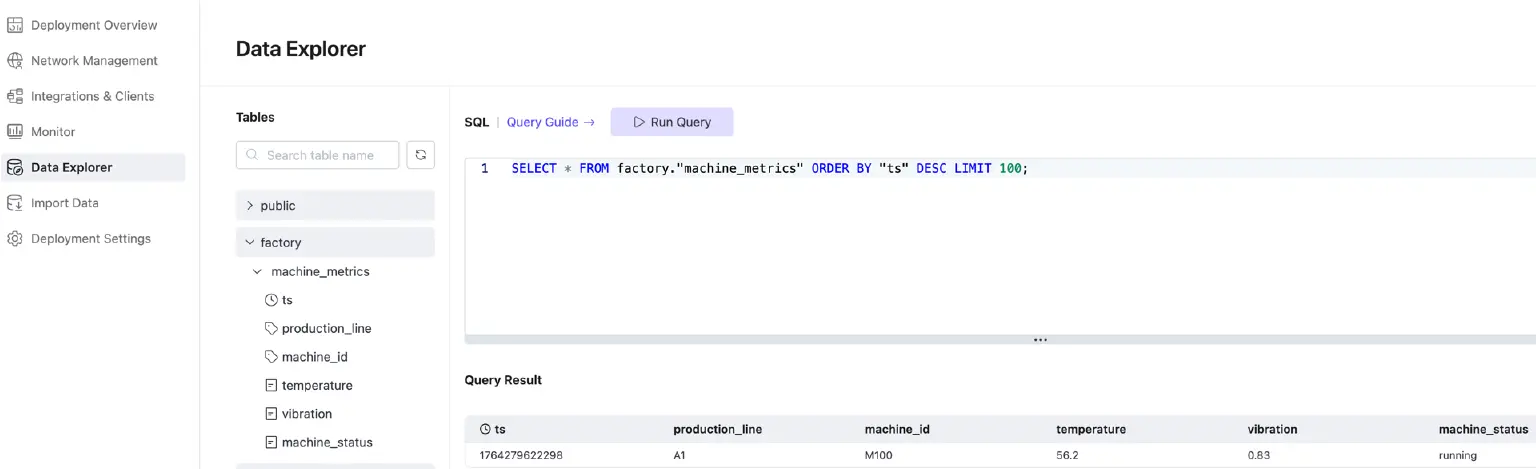
- Run the following SQL to query the data ingested into the table machine_metrics:
SELECT * FROM factory."machine_metrics";
You should see the newly inserted record.
Summary
Now we have completed the process of ingesting MQTT Data from Serverless into EMQX Tables. EMQX Serverless is well-suited for individual developers, proof-of-concept (PoC) use cases, and small-scale workloads. By leveraging the public SQL HTTP endpoint exposed by EMQX Tables, Serverless users can conveniently store and analyze MQTT data without managing additional infrastructure.
For production environments, however, we recommend upgrading to EMQX Dedicated Flex, where you can take advantage of the native EMQX Tables Connector and a secure private connection between services. This architecture delivers significantly higher performance, lower end-to-end latency, and a more cost-efficient solution compared with relying on the public HTTP integration path.